

Learn how to use Call Masking to keep passenger and driver numbers private
Indecab connects the call through a secure line, records it, and logs it against the duty, so your customers' privacy is protected and every conversation is on record.
What call masking does
Before looking at how it works, here is what changes for each person involved once call masking is enabled. With call masking enabled:
- Drivers and suppliers cannot see the passenger's phone number — in the Indecab Go app, or in any SMS, WhatsApp or email they receive.
- Passengers and customers receive a call button or link instead of the driver's or supplier's phone number in their duty alerts.
- You can check a full call log for every duty: who called whom, when the call happened, how long it lasted, how many credits it used, and a recording of the conversation.
This is especially useful for corporate customers with strict data-privacy policies, women's safety programmes, and any account where passenger numbers must remain confidential.
How does a masked call work?
Now that you know what is hidden and what is logged, the next step is to see how a call is actually connected.
Indecab connects the driver and passenger on a two-way call without revealing either person's actual number to the other. The caller's phone rings first. After the caller answers, Indecab dials the recipient and connects both of them.
There are two ways a call can start, depending on who is calling. We’ll start with the driver’s side in Indecab Go Driver App.
When a driver calls a passenger (Indecab Go Driver App)
- The driver opens the duty in Indecab Go. The passenger's number is masked.
- The driver taps Tap to call next to the passenger's name.
- The driver's phone rings first. When the driver answers, a short message plays to say the 'call is being recorded'.
- Indecab then calls the passenger and connects the two.
- After the call, you can check its duration, credits used and recording in the duty's activity log or under Operations → Call Logs.
When a passenger calls a driver (from an SMS, WhatsApp or email)
Passengers don’t use an app, so their calls start from the duty alert they receive instead.
- The passenger opens the duty alert. Instead of the driver's number, they see a Call driver button (email) or a short call link (SMS/WhatsApp).
- The link opens a secure Indecab call page showing your business name and the booking details.
- If there's more than one person who can call or be called (for example, a duty with several passengers), the page asks them to pick the caller and the recipient. Numbers are masked and only the last 4 digits can be seen.
- They tap Connect. The passenger's phone rings first; once they answer, Indecab connects them to the driver.
The same link-based process works the other way round: a driver or supplier who receives duty details by SMS, WhatsApp or email gets a Call passenger link instead of the passenger's number.
Good to know: call masking always uses the latest number on the duty for the person being called. If you change the driver on a duty, a passenger who taps an old link reaches the new driver.
Before you enable call masking
With the call flow clear, let’s look at what needs to be in place before you can use it.
Call masking works only when it is enabled at all three levels below. If any one is off, phone numbers are shared as usual.
The table below lists the three levels, who is responsible for switching each one on, and where in Indecab that happens. Treat it as a checklist, because all three rows must be complete.
| Level | Who enables it | Where |
|---|---|---|
| 1. Indecab (your account) | Indecab team | On request — contact Indecab support |
| 2. Your business | An Admin in your business | Operations → Call Logs → settings (gear) icon |
| 3. Each customer | Anyone who can edit customers | Masters → Customers → Edit → Enable Call Masking |
Beyond these three levels, you also need:
- At least 100 call masking credits in your account. Call masking runs on prepaid credits that Indecab adds for you.
- A phone number on the duty for both sides of the call. Call masking can't work without one (see Good to know).
- The latest version of the Indecab Go app on your drivers' phones, so the masked tap-to-call works.
Set up call masking
Once you have these requirements in mind, the steps below take you through the setup in order, starting with the request to Indecab, which unlocks everything that follows.
Step 1 — Request activation from Indecab
Write to support@indecab.com or call +91 8080 294 294 and ask for call masking to be enabled on your account. Tell us how many credits you'd like to start with. Once it's on, our team adds the credits and you'll see your balance under Your Account → View Billed Duties.
Step 2 — Enable call masking for your business (Admins only)
With Indecab’s activation and your starting credits in place, an Admin can now ‘enable’ the feature for your business.
- Go to Operations → Call Logs.
- Click the settings (gear) icon at the top right of the page.
- Choose Enable call masking.
Once it's on, a green line above the search bar reads "Call masking is active. You can disable call masking from the settings icon." The same menu then offers Call masking details (your call rates) and Disable call masking.
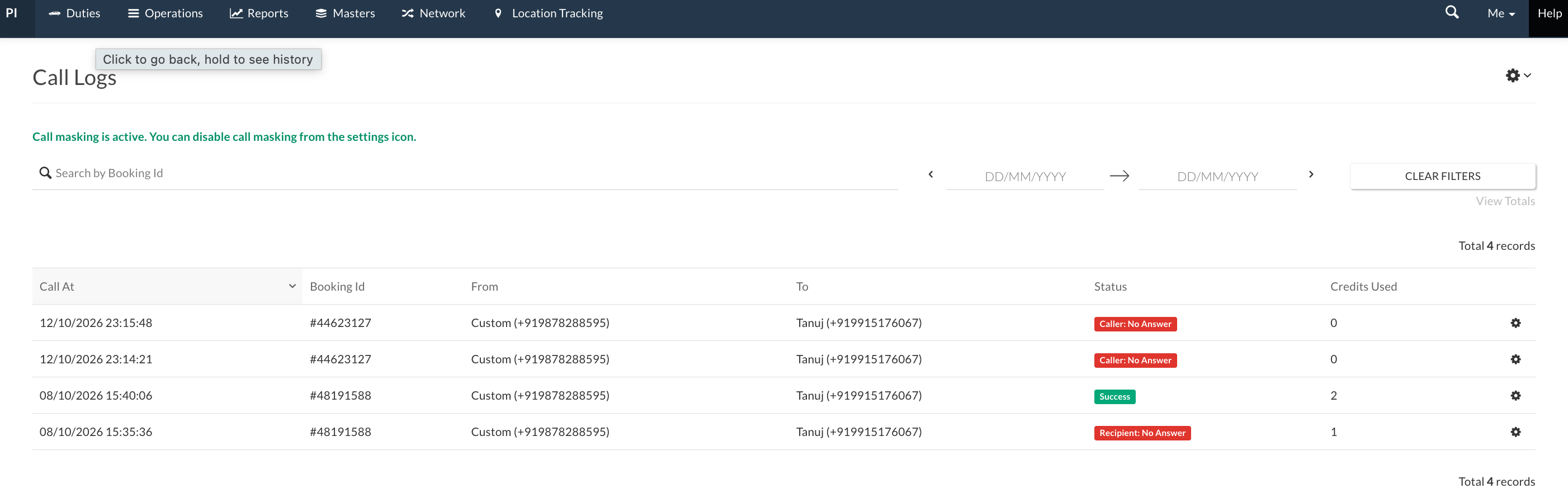
You need at least 100 credits to do this. With fewer, Indecab shows an error and asks you to contact support. Employees can view Call Logs but only Admins can enable or disable call masking.
Step 3 — Enable call masking for each customer
Enabling it for your business doesn’t mask anyone yet. Next, choose which customers it applies to.
- Go to Masters → Customers, open the customer and click EDIT.
- Scroll to the Booking/Duties Settings section and tick Enable Call Masking. It sits just below the Do not send SMS, WhatsApp and Email… options.
- Save the customer.
- Repeat for every customer whose passengers' numbers should stay private.
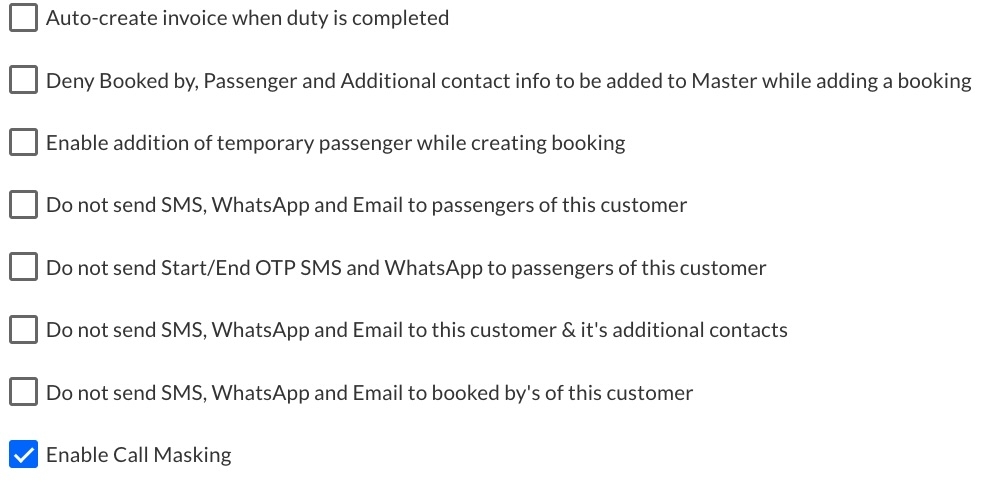
This lets you mask numbers only for the accounts that need it — for example, a corporate client with a privacy policy — while your other customers carry on as before. Every change to this setting is recorded in the customer's audit log.
Step 4 — Update Indecab Go on drivers' phones
The last step happens on the driver side.
Ask your drivers to update Indecab Go from the Play Store or App Store. Older versions may still show passenger numbers.
That's it. From now on, every new duty alert for a masked customer carries call links instead of phone numbers.
What gets masked
With setup complete, here is exactly what your customers, drivers and suppliers will see. The rule is simple: passenger-facing messages hide the driver's and supplier's numbers, and driver- or supplier-facing messages hide the passenger's number.
You send duty details from the duty's settings (gear) icon → Send info, or the green SEND INFO button on an allotted duty. For masked customers, those messages carry call links instead of phone numbers.
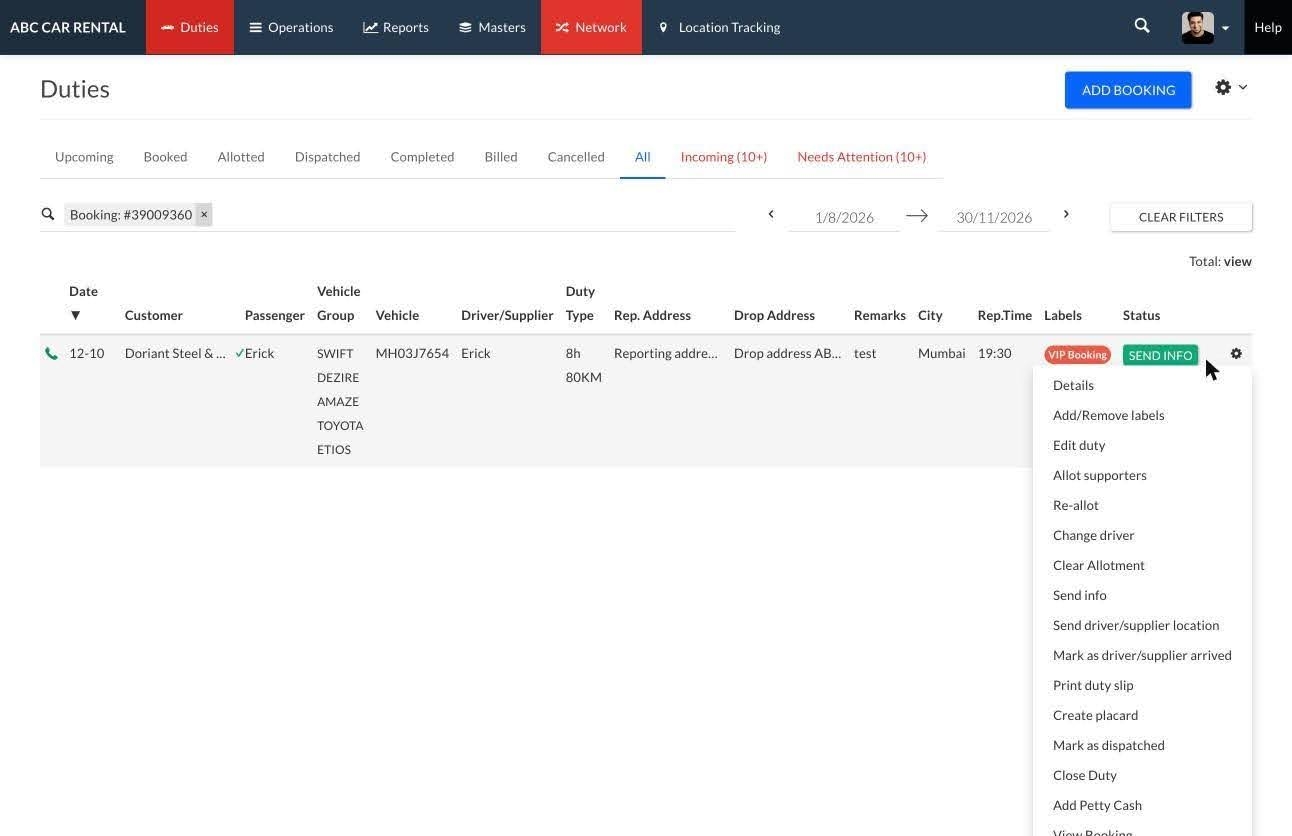
The table below covers every message or screen where masking applies. For each one, it shows who receives it, which number is hidden, and what the recipient sees in its place.
| Message or screen | Sent to | What's hidden | What they see instead |
|---|---|---|---|
| Send info → customer and passenger | Passenger, customer, custom contacts | Driver's number | Call driver button / link |
| Send info → driver | Driver | Passenger's number | Call passenger link |
| Send info → supplier | Supplier | Passenger's number | Call passenger link |
| Driver arrived alert | Passenger, customer, custom contacts | Driver's number | Call driver link |
| Send driver/supplier location (live location) | Passenger, customer | Driver's number | Call driver link |
| Duty or booking cancellation | Supplier | Passenger's number | Numbers removed |
| Duty slip approval request | Approvers | Passenger's and driver's numbers | Numbers removed |
| Indecab Go duty screen | Driver | Passenger's number | Tap-to-call places a masked call |
Automatic alerts you've set up under Business Settings → Others → Automatic alerts follow the same rule.
Driver arrived SMS and WhatsApp: the default templates for these alerts don't include the driver's phone number. Masking applies only if you've added the driver's number to your template — it then appears as a call link instead.
Duty start/stop verification codes (OTPs) still go to the passenger as normal. Booking confirmations, invoices, receipts and payment messages are not affected.
How links appear in SMS and WhatsApp
Since these call links are sent in short messages, here is how they are fitted in. SMS and WhatsApp have tight character limits, so Indecab fits passenger names around the call link as best it can. It tries full names of all passengers first, then first names only, then the first passenger's first name — and if even that won't fit, it sends just the link.
Clubbed vs separate emails
Email behaves slightly differently, depending on how you send it. If you send one clubbed email to several people, everyone gets the same link and picks who is calling on the call page. Separate emails give each person their own link, already set up for them.
Track calls in Call Logs
Once calls start happening, you will want to check them. Every masked call is recorded in Operations → Call Logs and in the activity log of its duty.
On each duty: click the duty's settings (gear) icon → Details to open the Duty Details panel, then switch to the Activity tab. Each masked call appears as an entry such as "Erick initiated a call with the Driver Erick (Alternate)". Click View Details on the entry to open the same Call Details panel described below. This is the quickest way to check whether a driver and passenger actually spoke on a particular trip. You can also reach the log from View Activity Logs on the booking page.
For a view across all duties, use the Call Logs page itself.
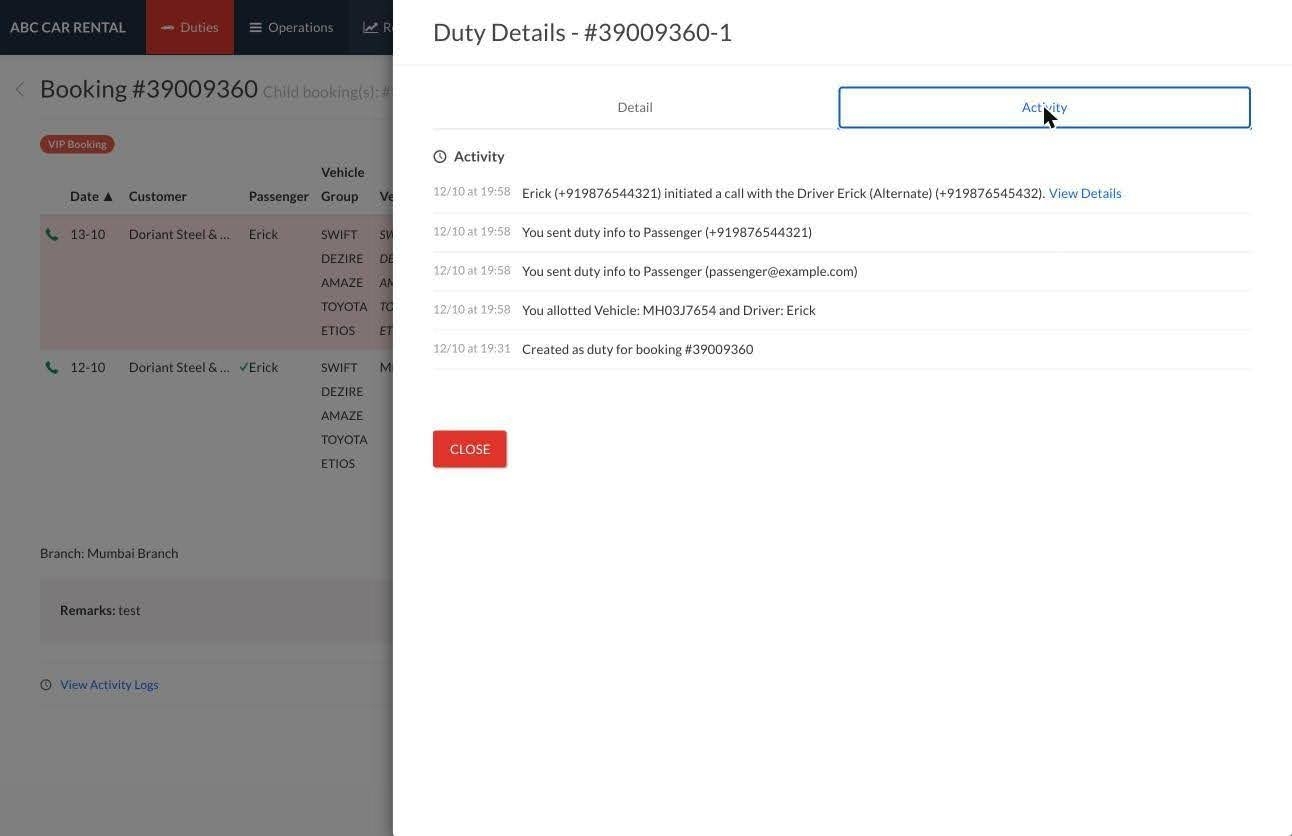
Who can see Call Logs: All Admins, plus employees who have the Call Logs View permission (set it under employee permissions). Call Logs only appears once call masking is active on your account.
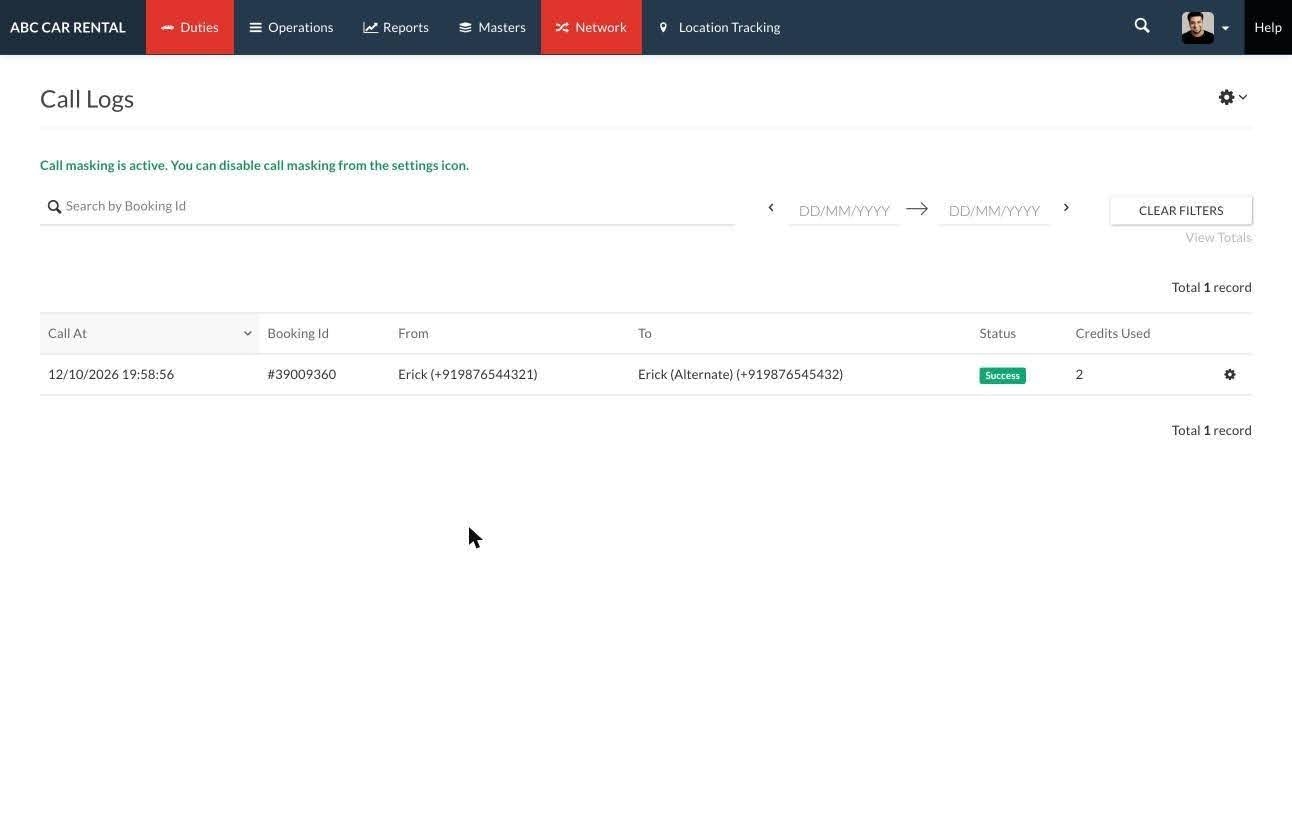
The listing page has a row per call with Call At, Booking Id, From, To, Status and Credits Used. From and To show each person's name and number, for example Erick (Alternate) for a driver's alternate number. Search by booking ID or pick a date range; View Totals shows the credits used for the range you've filtered (for ranges of 7 days or less).
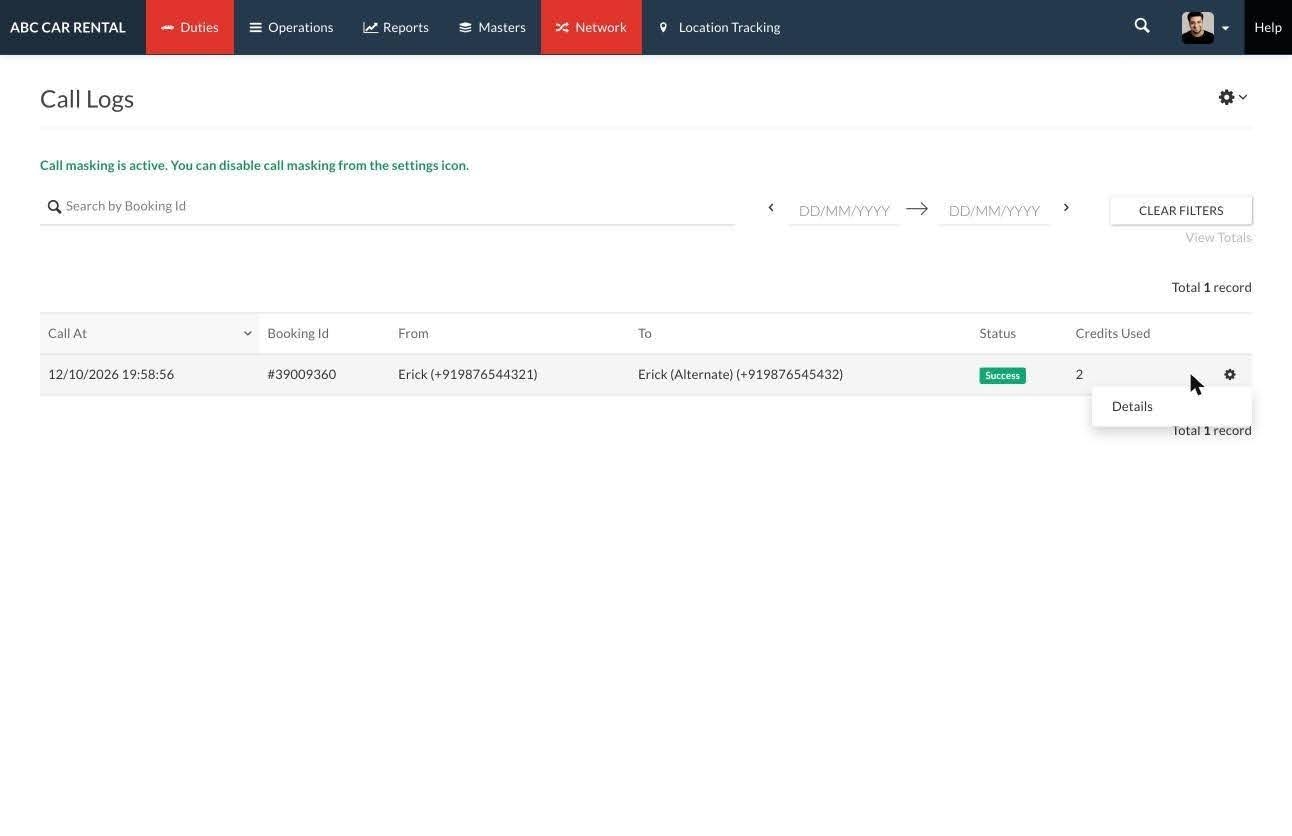
To open a call's details, click the settings (gear) icon at the end of its row and choose Details. Clicking the row itself does nothing. The details open in a Call Details side panel.
The call details panel shows:
- Summary — booking number, status, from, to, call started and ended times, conversation duration and credits used.
- Recording — an audio player to play back the call. Recordings are usually ready within 2–3 minutes of the call ending.
- Caller and Recipient cards — each side's name, number, status, duration and credits used.
- Event Timeline — each step of the call with its time: Indecab ringing the caller, the caller answering, Indecab connecting the recipient, the recipient answering, and the call ending.
Credits show as processing for a few minutes after a call while the final cost is calculated.
Call statuses
The Status column and the Call Details panel use a fixed set of labels to describe how each call went. The table below explains what each status means, and notes which ones appear as the overall call status and which appear on the Caller and Recipient cards, so you can tell a connected call from a missed one.
| Status | What it means |
|---|---|
| Initiated | Indecab has started setting up the call |
| Ringing | A phone is ringing |
| In progress | Both people are connected and talking |
| Success | The call connected and ended normally (overall call status) |
| Answered | One side picked up (shown on the Caller and Recipient cards) |
| Completed | That side's leg ended normally (shown on the Caller and Recipient cards) |
| Busy | The person called was on another call |
| No answer | The person called didn't pick up |
| Failed | The call couldn't be connected |
| Cancelled | The call was stopped before it connected (rare) |
Credits and billing
Every call listed in Call Logs uses credits, so this section explains how those credits are counted and how to keep your balance topped up. Call masking is prepaid. You buy a pack of credits from Indecab, and each masked call uses some of them.
How credits are used
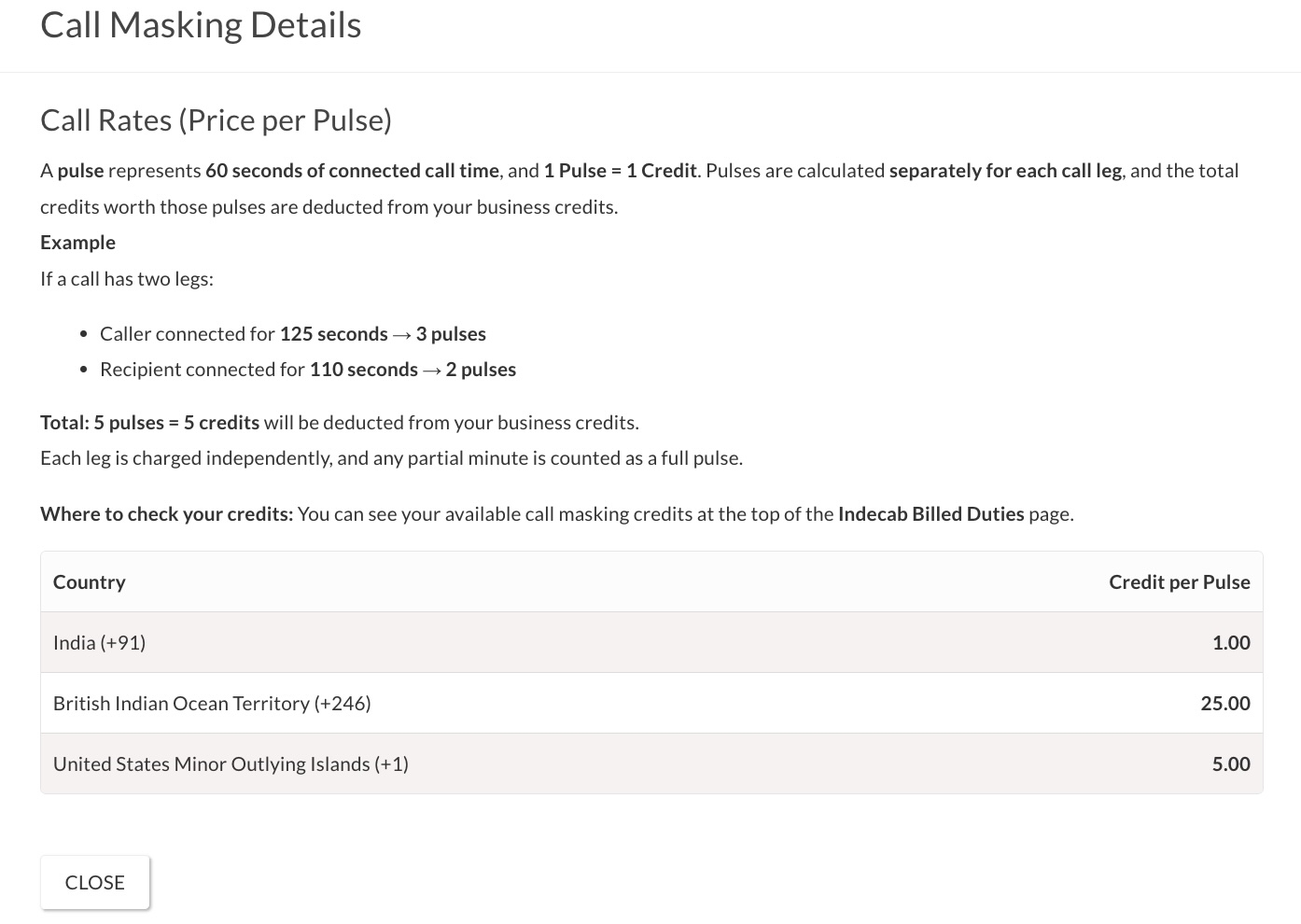
- A pulse is 60 seconds of connected call time, and 1 pulse = 1 credit for Indian (+91) numbers.
- A masked call has two legs — the caller's and the recipient's — and pulses are counted separately for each leg.
- Any part of a minute counts as a full pulse. A leg that lasts 61 seconds is 2 pulses.
- The caller's leg is usually a little longer, because their phone rings first and stays connected while Indecab dials the recipient.
Example: the caller is connected for 125 seconds (3 pulses) and the recipient for 110 seconds (2 pulses). The call uses 3 + 2 = 5 credits.
To see your current rates, go to Operations → Call Logs → settings (gear) icon → Call masking details.
Checking your balance: Open your profile menu, choose Your Account, then click VIEW BILLED DUTIES. Your balance appears at the top of the Indecab Billed Duties page as Available Call Masking Credits. Credits used per call are shown in Call Logs.
- Topping up: Contact Indecab support to add credits. Keep your balance above 100 — below that, call masking stops working (see Troubleshooting).
- International numbers: Masking for international numbers is off by default and is charged at separate rates per country. Ask Indecab support if you need it. Only one side of a call can be an international number.
Duties shared over the Indecab Network
So far we have looked at calls within your own business. Duties that move between partners follow a few extra rules. When a duty passes through your network — for example, you send it to a partner, who passes it to another partner — the business where the duty started decides whether passenger numbers are masked.
- If the originating business has call masking enabled, for both the business and that customer, passenger numbers are hidden from every partner down the chain.
- Partners won't see the passenger's number on their duty details page, and their drivers won't see it in Indecab Go.
- Partners' drivers can still call the passenger through a masked call from Indecab Go.
- If the originating business updates the passenger's number, the change isn't passed on to partners, so the number stays private.
The masked calls on a network duty are charged to the originating business, the same way OTP messages are.
Good to know
Before the troubleshooting section, here are some practical points that explain behaviour you may notice day to day.
- Every call is recorded. Both people hear a short notice that the call is being recorded before they're connected.
- One new call every 30 seconds. If someone taps Connect again too soon, they're asked to wait.
- Each link has a usage limit. A call link can be used up to 100 times. After that, resend the duty details to issue a fresh link. In Indecab Go, each Tap to call for a duty counts towards the same limit.
- The caller's number is fixed when the message is sent. If you change the phone number of the person who received the link (say, the passenger's own number), resend the message so the link uses the new number. The person being called is always looked up live.
- No phone number, no masking. If a recipient has only an email address — for example, a custom contact added without a phone — call masking can't connect them, so that message shows the actual number instead.
- Multiple numbers are supported. If a passenger, driver or supplier has several numbers separated by a comma or semicolon, the call page lists each one so the right number can be picked.
- Custom contacts with both SMS and WhatsApp numbers: the WhatsApp number is used for call masking.
- Copying and importing customers: the Enable call masking setting isn't included in Copy customer settings, customer import or customer export. Set it on each customer by hand.
Troubleshooting and FAQs
If something doesn’t work as expected after setup, the answers below cover the most common situations.
Need help? Contact Indecab support at support@indecab.com or +91 8080 294 294, Monday to Friday, 10 am to 7 pm.
Was this Helpful?

- Visit Our Website
- Our Policies