

Understanding FASTag toll auto-fetch
Your team no longer has to check, verify, and enter toll amounts for every duty. By the end of this article, you should be able to understand how auto-fetch works for different duty-closing methods, how to enable it for your business, and how the FASTag helps you tell verified tolls apart from manually entered ones.
Where FASTag auto-fetch applies
FASTag toll auto-fetch works across the platform wherever a duty is closed, with one exception:
- Available for — all duty types
- Not available for — ‘Flat Rate’ duties
How it works
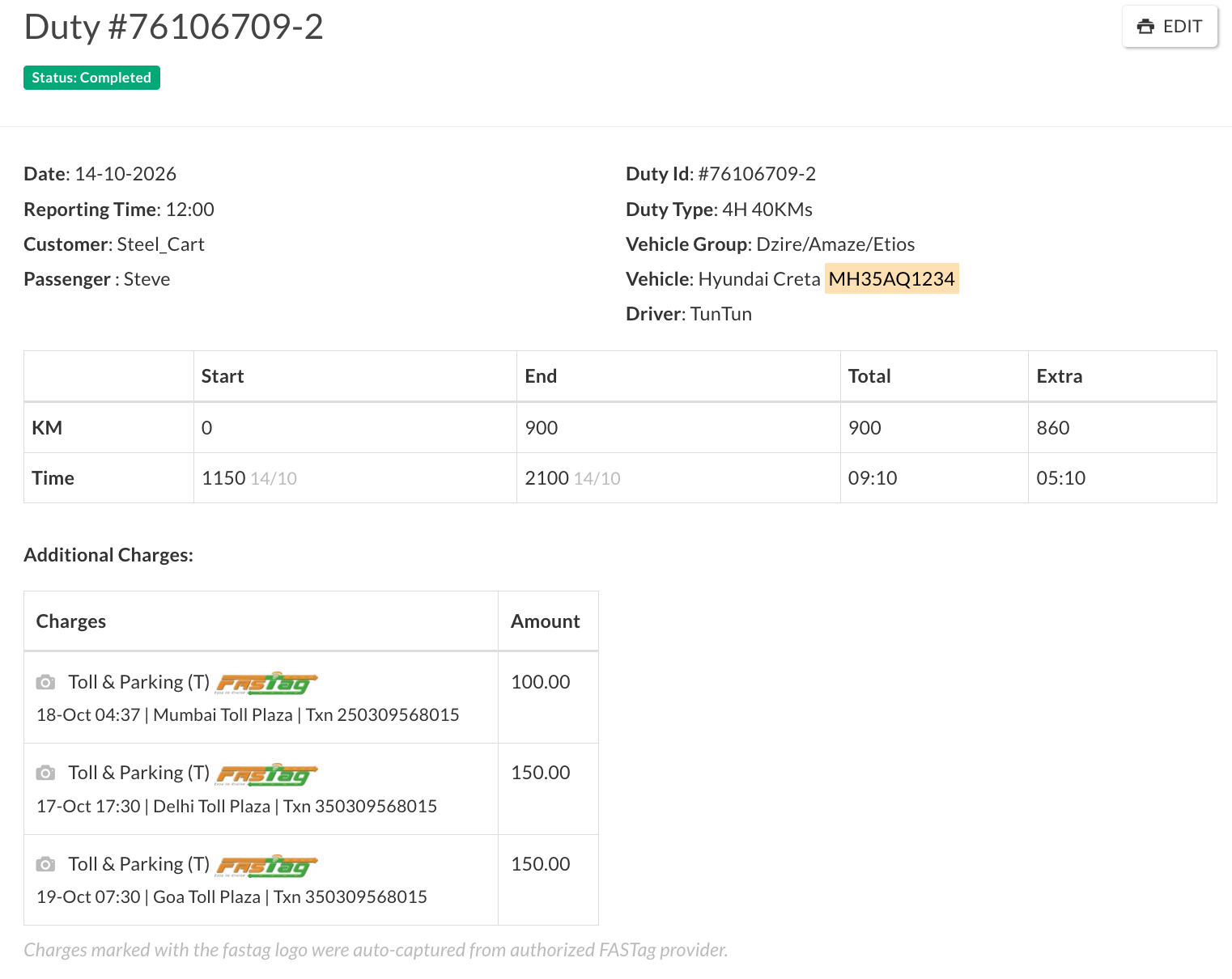
When a duty is completed, Indecab checks the FASTag transactions for that vehicle during the duty’s toll-fetch window. If a toll charge is found, it is added to the duty slip (including duty slip on invoices) and mapped to the billing items your business has configured for FASTag tolls.
Every toll fetched this way is marked FASTag on the ‘duty slip’, with its transaction details underneath, so your team can immediately tell it came from a verified source rather than manual entry.
Which time period is used to fetch tolls?
By default, Indecab fetches tolls between the duty start time and the duty close time.
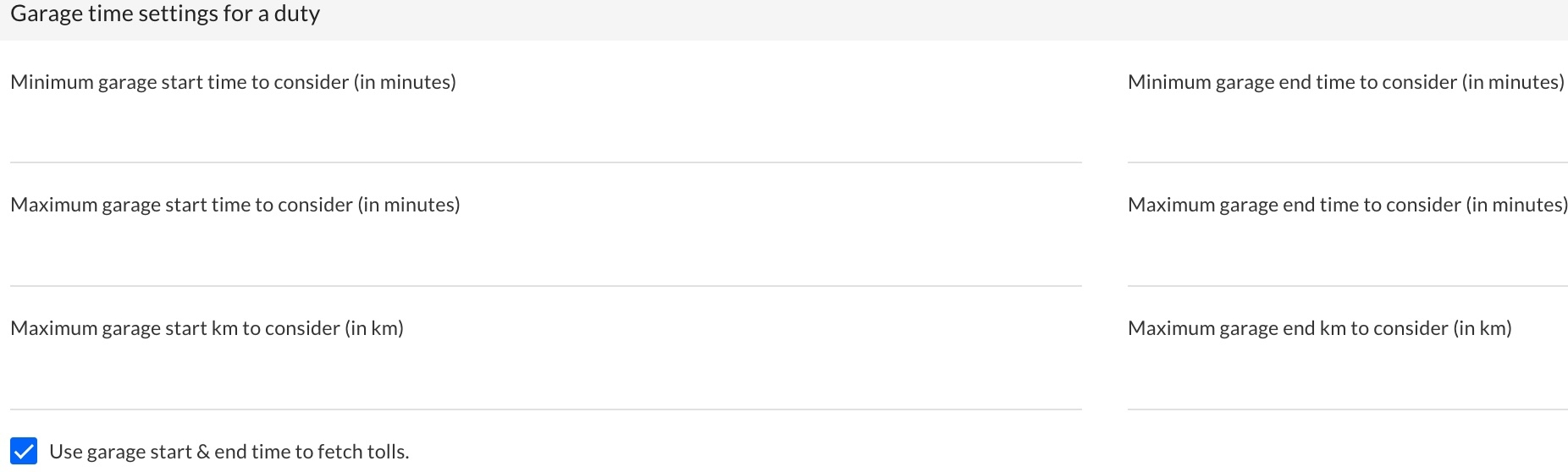
If your business turns on Use garage start & end time to fetch tolls, Indecab instead fetches tolls from garage departure to garage return. This also captures tolls on the way from the garage to the pickup and from the drop back to the garage.
How to enable garage-to-garage toll fetching: This setting is visible only once FASTag auto-fetch has been enabled for your business.
- Go to Business settings → Garage settings for a duty.
- Tick Use garage start & end time to fetch tolls.
- Save.
Untick it at any time to return to duty start → close.
Good to know
- Every toll from the default period is still captured when the setting is on. The setting only extends the period on both sides. For example, say the garage start time is 8 am, the duty start time is 9 am, the duty end time is 10 am, and the garage end time is 11 am. Setting off: Indecab considers tolls from 9 am to 10 am. Setting on: Indecab considers tolls from 8 am to 11 am.
- Time adjustments are respected. If you adjust the duty time or the garage time on a duty, Indecab uses the adjusted times when fetching tolls. Duty time adjustments are used whether the setting is on or off. Garage time adjustments are used only when the setting is on.
- Back-to-back duties: if the same vehicle does two duties without returning to the garage in between, the tolls between the two duties appear on both duty slips. They are not split.
- Converting to point to point: if you tick Convert to point to point duty on the close-duty form and fetch again, Indecab fetches tolls from duty start to duty end only, as if the setting were off.
There are two ways a duty can be closed
There are two ways a duty can be closed, and auto-fetch behaves slightly differently for each.
A. When the duty is closed through the Indecab Go Driver App
| Step | What happens |
|---|---|
| 1 | The duty is closed by the driver |
| 2 | Indecab fetches the FASTag toll charges for that duty |
| 3 | The toll charges are added to the duty slip. |
If the fetch fails, Indecab retries automatically. If it still fails after retrying, the duty is moved to the ‘Needs Attention’ tab, so your team knows to check it manually.
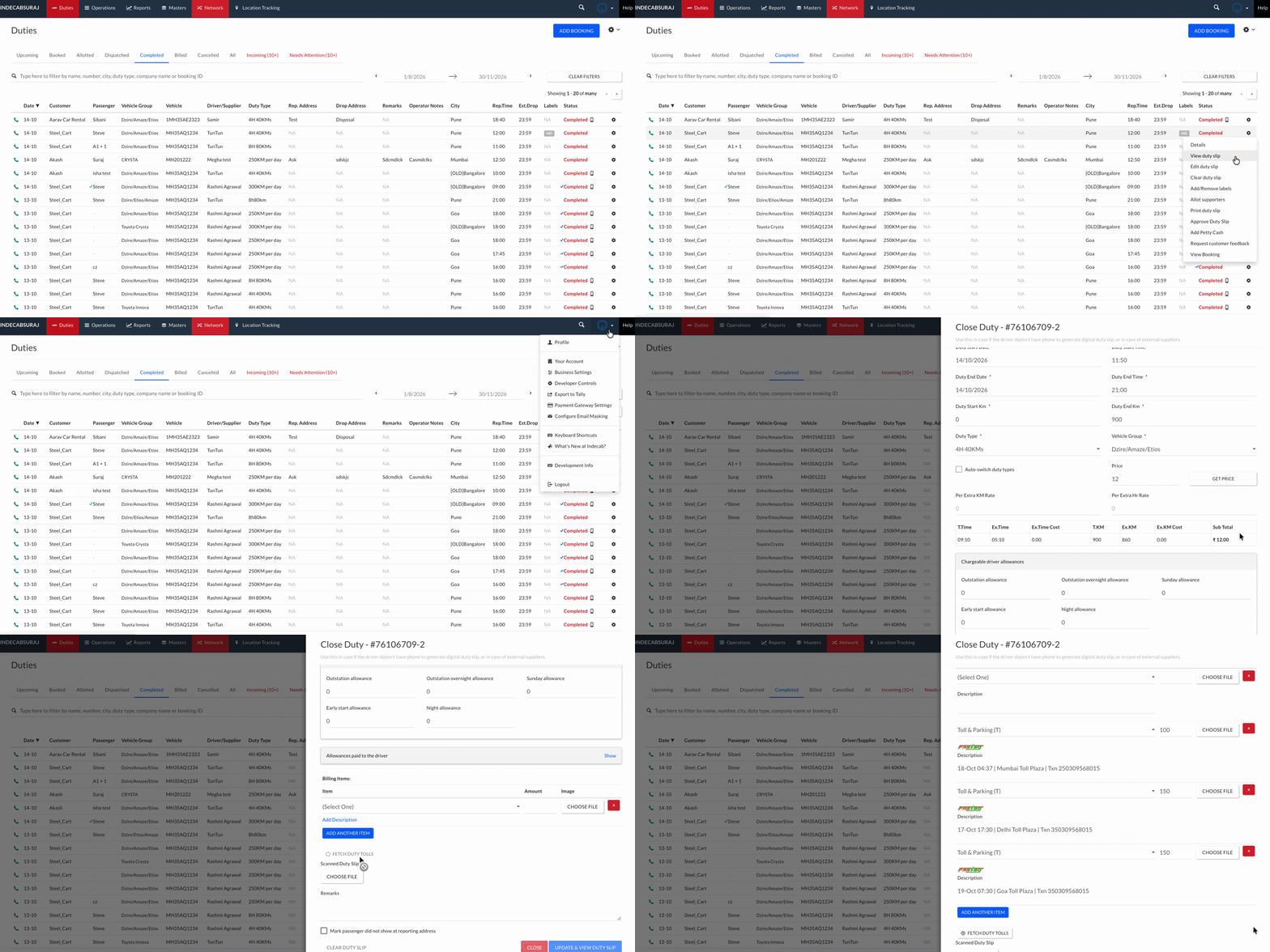
B. When the duty is closed from the web
| Step | What happens |
|---|---|
| 1 | The admin/user clicks ‘Fetch Toll’ on the close-duty screen |
| 2 | Indecab fetches the FASTag toll charges for that duty |
| 3 | The toll charges are added to the duty slip. |
Unlike the app flow, this fetch is not automatic — it needs to be triggered manually via the ‘Fetch Toll’ button.
How to enable FASTag toll auto-fetch
FASTag auto-fetch is not active by default — it needs to be configured for your business before it can be used.
To enable the feature, contact Indecab Team and provide the following details:
| Detail | Description |
|---|---|
| FASTag integration provider | Share the details of the third-party FASTag integration provider you use |
| Integration credentials | Provide the required credentials for the integration |
| Billing item | Tell us which billing item should be used for fetched FASTag toll charges. You can check or create the billing item from Masters → Billing Item |
Once setup is complete, you also need to bind each vehicle to a toll provider before it can use auto-fetch:
- Go to Masters → My Vehicles.
- Select the vehicle that will be performing the duty.
- Choose the FasTag provider (e.g., HDFC 1Pay) from the list, and enable it for that vehicle.
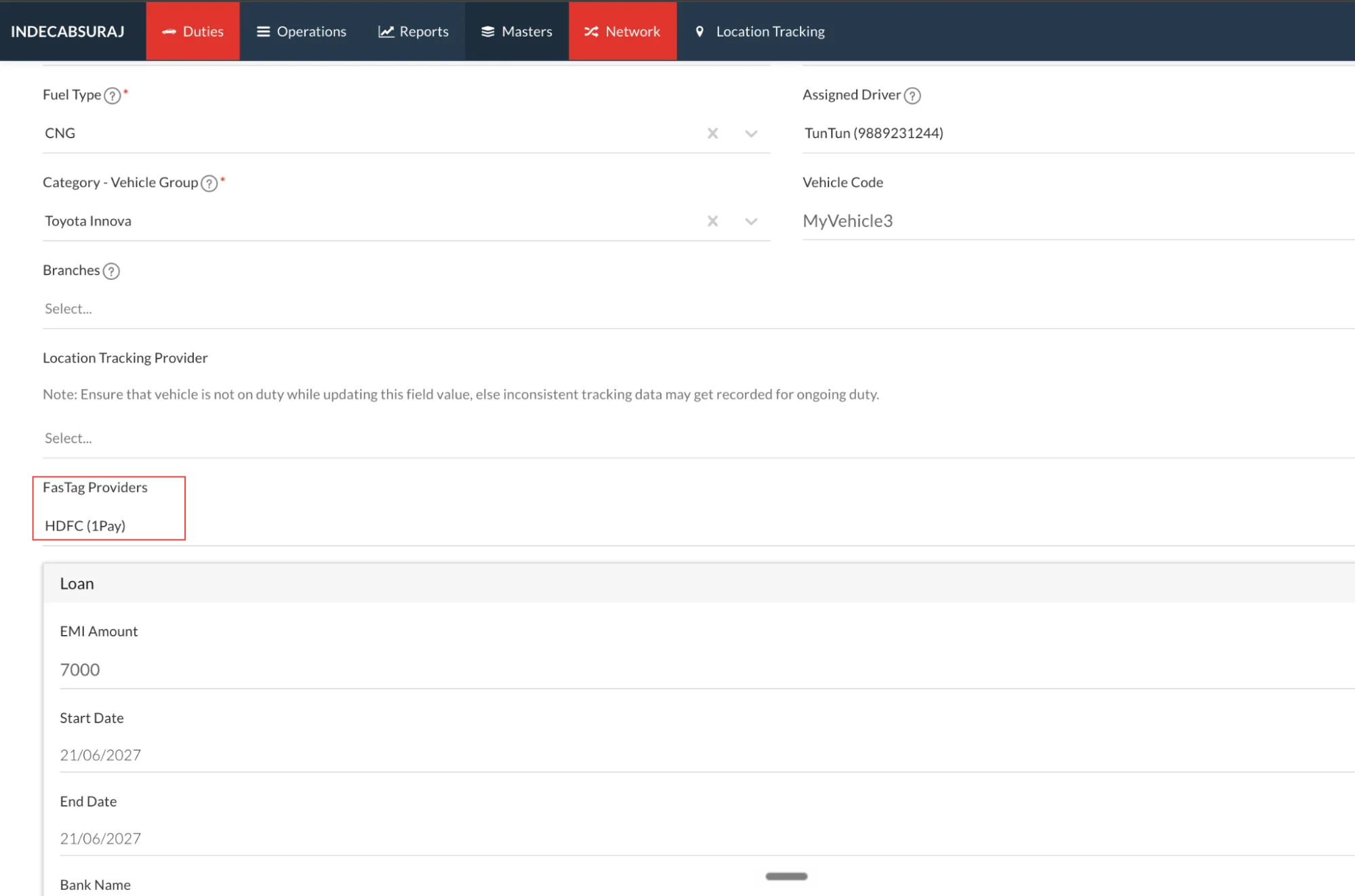
This binds the vehicle to the selected provider, so FASTag toll charges can be auto-fetched for its duties. Once a vehicle is bound, FASTag toll charges fetched for its eligible duties will automatically be added to the duty slip.
The FASTag logo
Every toll the system fetches carries a small FASTag logo next to the billing item name, with a line of transaction details below it, in this format:
18-Oct 04:37 | Mumbai Toll Plaza | Txn 250309568015
These are the date and time, toll plaza and transaction ID. They let your team and your customer verify each charge.
Under the Additional Charges table, a grey note reads: “Charges marked with the fastag logo were auto-captured from authorized FASTag provider.” It appears whenever at least one charge carries the logo, including on older duties.
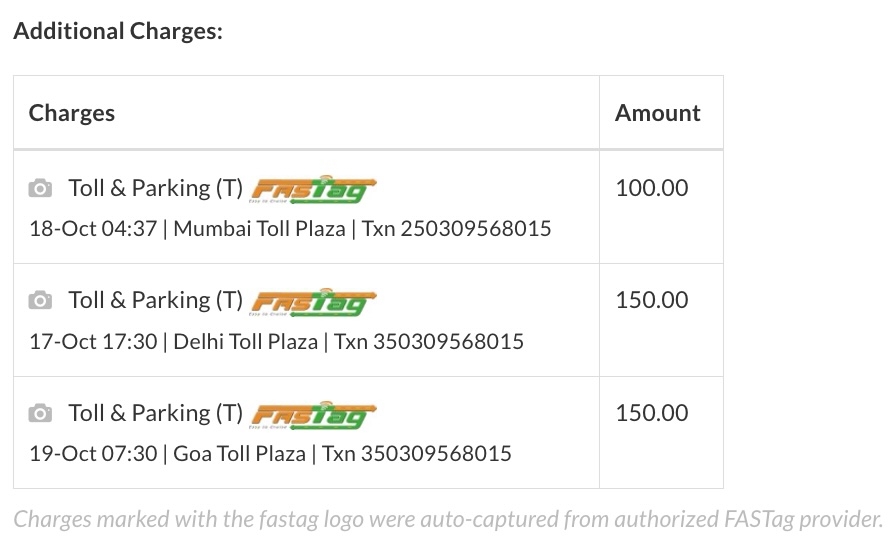
The logo appears on the duty slip (view, print and download) and on the duty slip attached to an invoice.
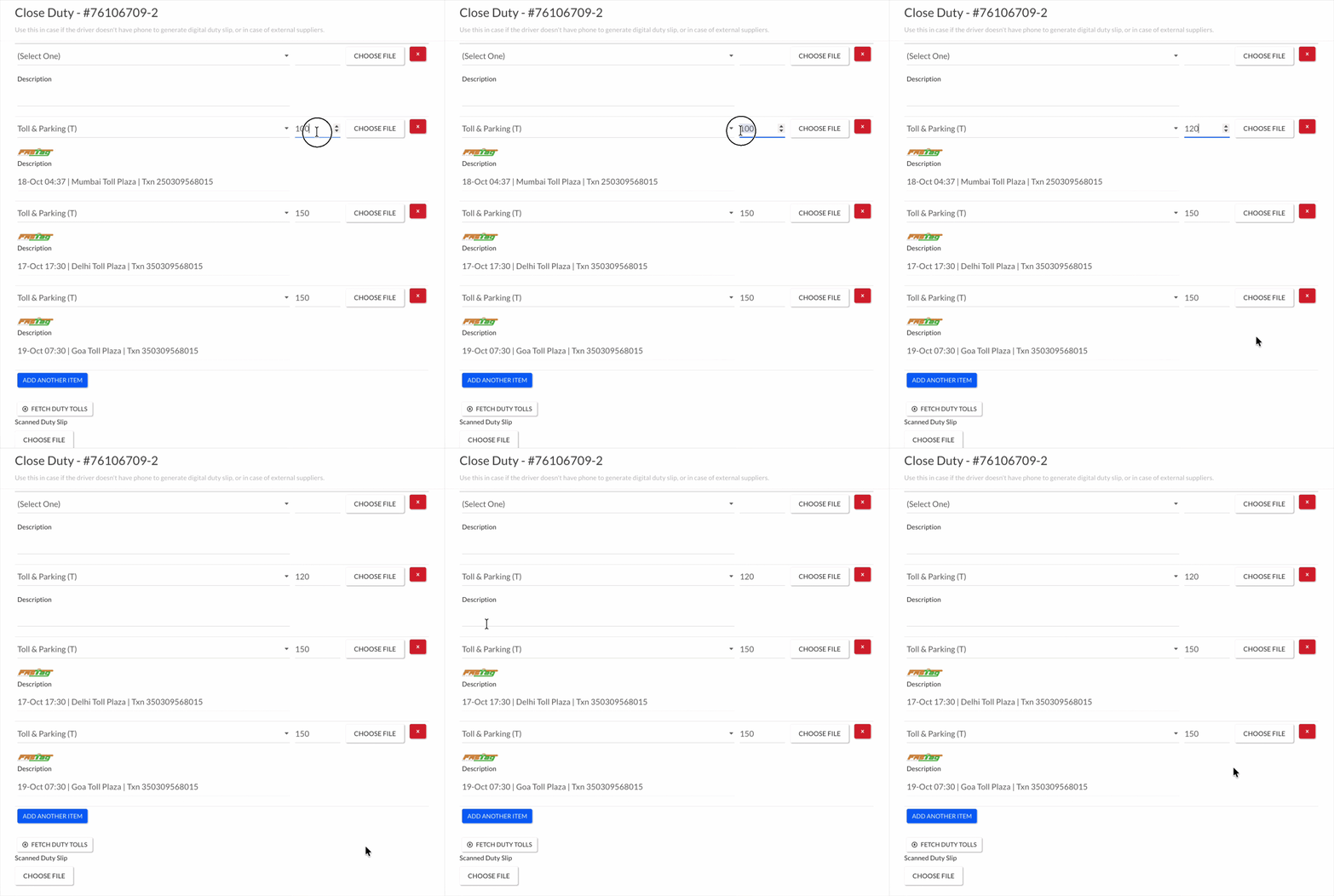
If you edit a toll: the logo and transaction line are removed, because at that point it’s a manually entered value, not the auto-fetched one. Other fetched tolls are not affected.
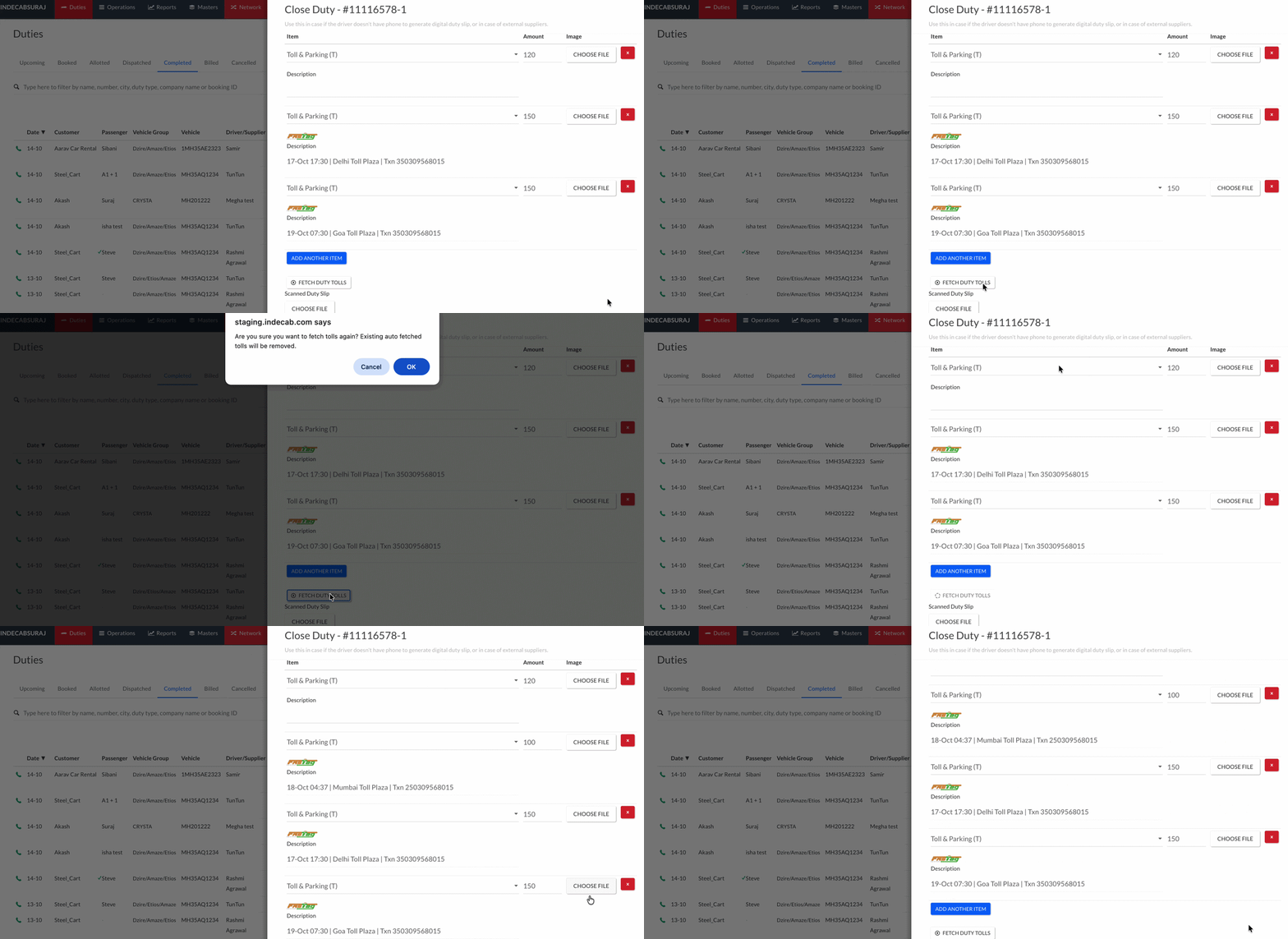
If you fetch again: Indecab replaces only the tolls that still carry the logo and keeps the ones you’ve edited. For example, 3 fetched tolls, 1 edited, then a re-fetch gives 4 rows.
Permissions
FASTag toll auto-fetch setup is managed entirely by the Indecab support team on your behalf — these actions aren't self-serve from your dashboard.
| Action | Who can do it |
|---|---|
| Turn the feature ON | Indecab support team |
| Choose the billing item tolls map to | Indecab support team |
| Delete or mark that billing item inactive, once chosen | Indecab support team |
| Turn garage-to-garage toll fetching on or off | Admin or Indecab support team] |
Frequently Asked Questions
Was this Helpful?

- Visit Our Website
- Our Policies