

Updates for October 2026
Here's what's new this month across customer settings, billing, payments, and imports/exports.
1. Custom OTP Settings for Every Customer
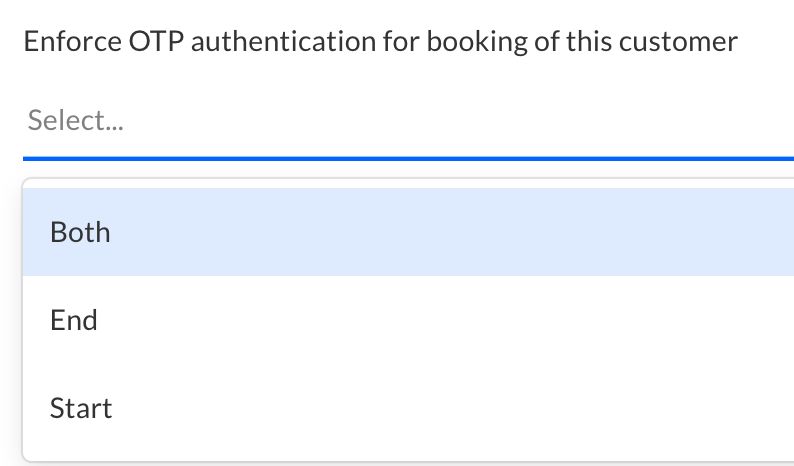
You can now set ‘Enforce OTP’ (Start, End, or Both) separately for each customer at the customer master level, so each customer can have OTP rules suited to their needs, rather than a single setting for everyone.
This becomes useful especially when different customers have different security needs. Some customers might require both start and end OTP’s whereas some customers might prefer the signature method of duty slip validation.
2. Convert Passengers into Employees
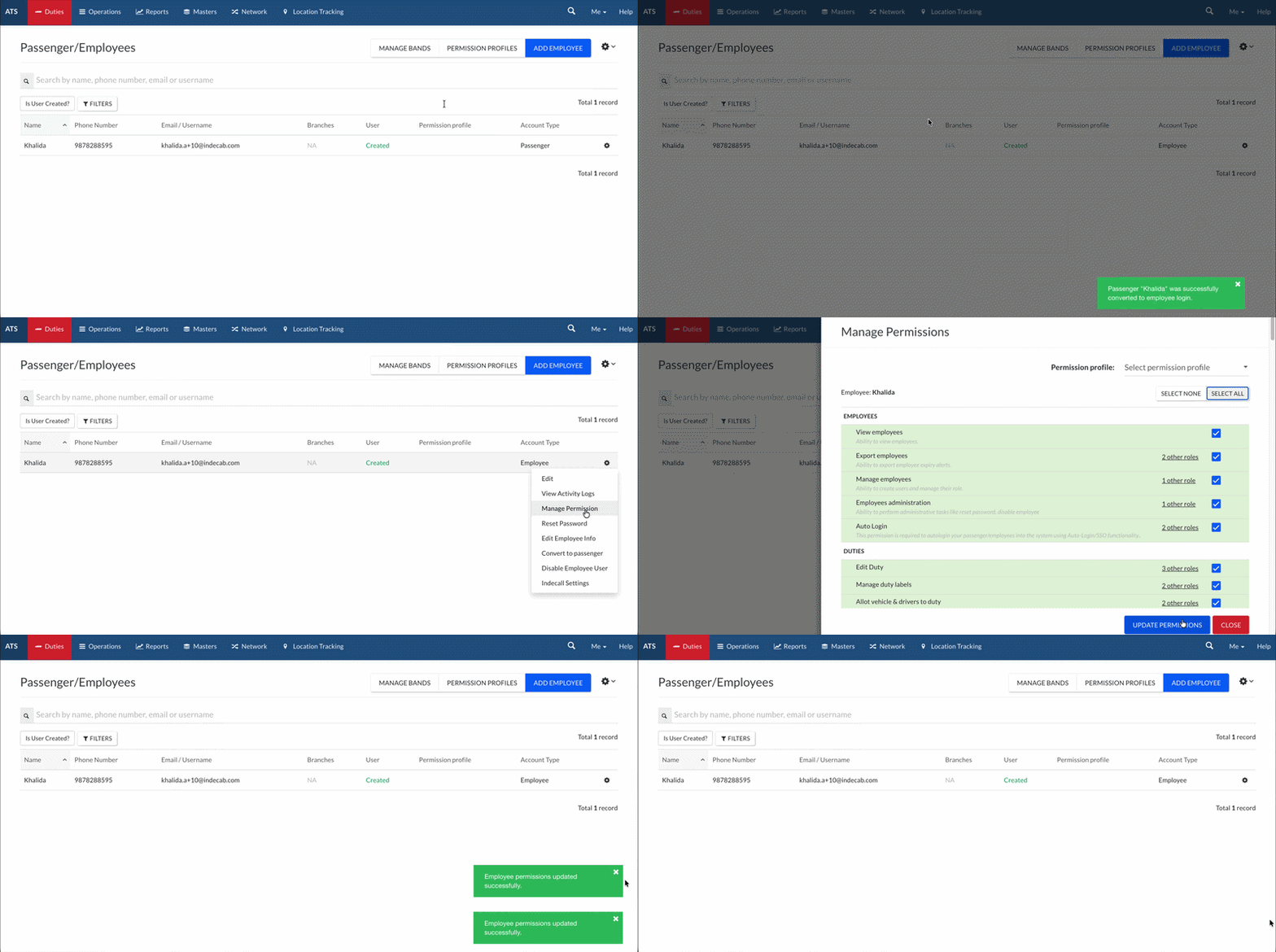
Turn any ‘passenger’ into an ‘employee’ in a few clicks, then assign permissions. Depending on the permissions, the employee can log in and view or manage bookings for other passengers.
How it works:
- Open the Passenger list.
- Select Convert to Employee.
- Set the employee’s permissions.
Note: This is only applicable for your corporate accounts.
The conversion is useful when a passenger's role changes — for example, when they take on booking responsibilities for their team and start using Indecab as an admin.
3. Set a Maximum Amount for Billing Items
Turn any ‘passenger’ into an ‘employee’ in a few clicks, then assign permissions. Depending on the permissions, the employee can log in and view or manage bookings for other passengers.
A simple typo like an extra zero or two can lead to incorrect amounts, incorrect duty slips, and time-consuming corrections down the line. For example, set a limit of ₹500 on 'Parking' or ₹200 on 'Toll' so drivers can only enter amounts within a reasonable range.

4. See which Card is Linked for Auto Collect
Once a customer authorizes Auto Collect, you can now see:
- Last 4 digits of the card
- Card network (Visa, Mastercard, Amex)
- Card type (Credit or Debit)

This is useful for quickly getting more information regarding the transaction when needed.
5. Get Notified When a Payment Is Processing
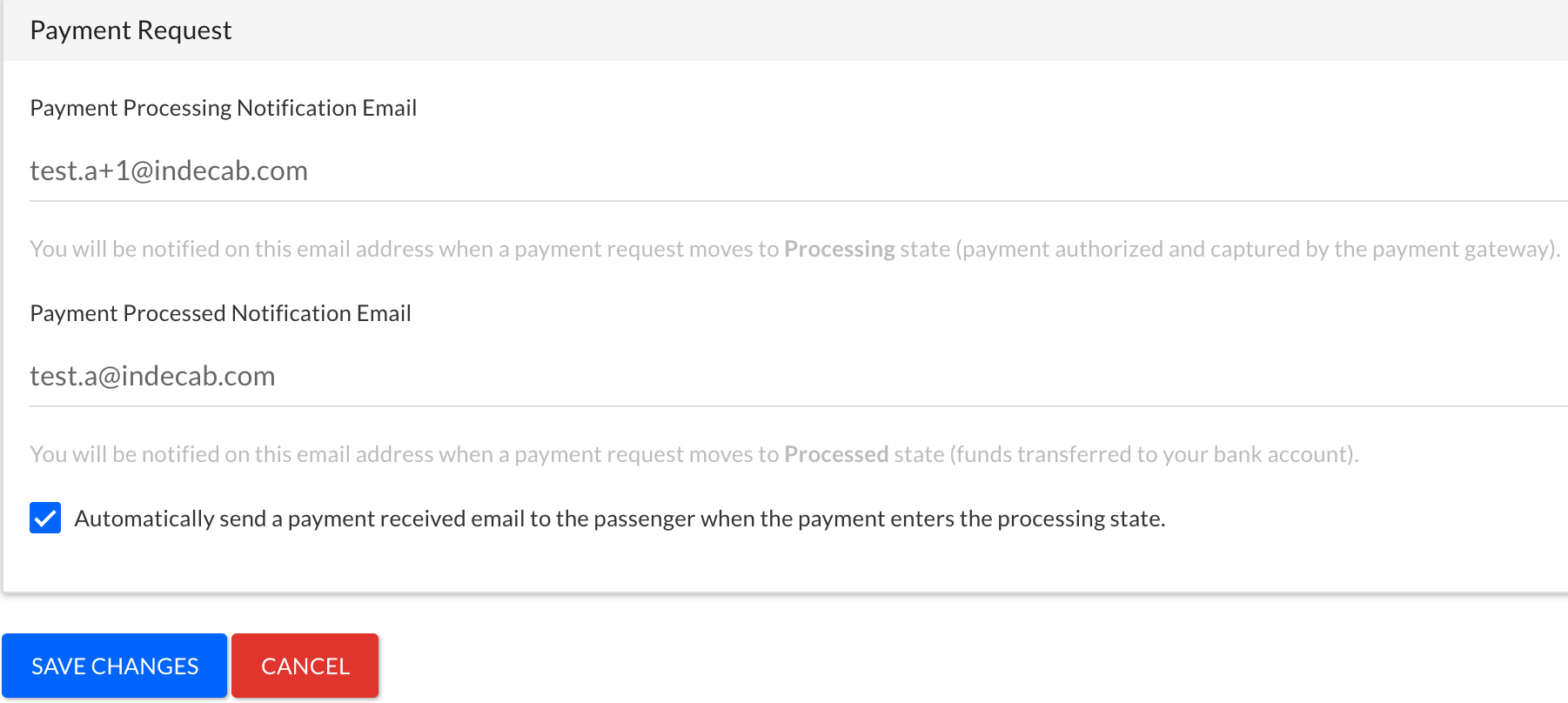
We have added the ability to get an email notification when a payment request has been paid by your customer. You can set up email based notifications to receive an email as soon as a payment enters the Processing stage, and another when it's Processed.
To enable: Business Settings → Notifications → Payment Request
6. Import & Export Updates
We've made bulk data management smoother and financial exports more complete — here's what's new:
i. Employee Import: You can now update existing employee records instead of only creating new ones including:
- Name
- Phone Numbers
- Designation
You can also import up to 10,000 employee records in a single file.
ii. Billing Export: Added three new columns:
- External Invoice Date
- External Invoice Number
- External Invoice PDF
iii. Purchase Invoice Export: Now includes following ‘Supplier Bank Details’ and the ‘To Be Paid’ amount columns:
- Account Name
- Account Number
- Bank Name
- Branch
- IFSC
- Cheque-in-Name-Of,
- UPI) and
- To Be Paid amount (balance remaining after TDS), with a total at the bottom of the export.
Bonus: Hover over any unpaid Purchase Invoice in the list to see its ‘To Be Paid’ amount instantly.
iv. Purchase Payment Export: Added a ‘Purchase Invoice Number’ column, so you can match payments to their source invoice more easily.
These updates give you more control over your customers, payments, and business data, and make imports and exports easier than ever.
Was this Helpful?

- Visit Our Website
- Our Policies