

Understanding the My Vehicles section
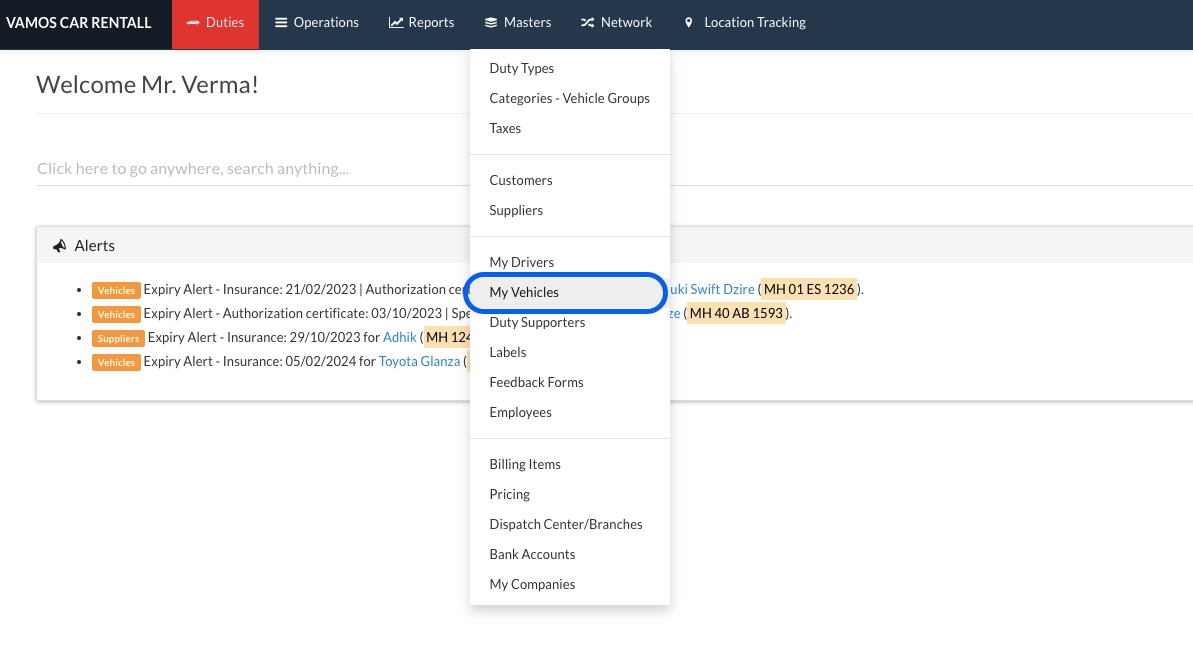
To get started, go to Masters - Click on My Vehicles
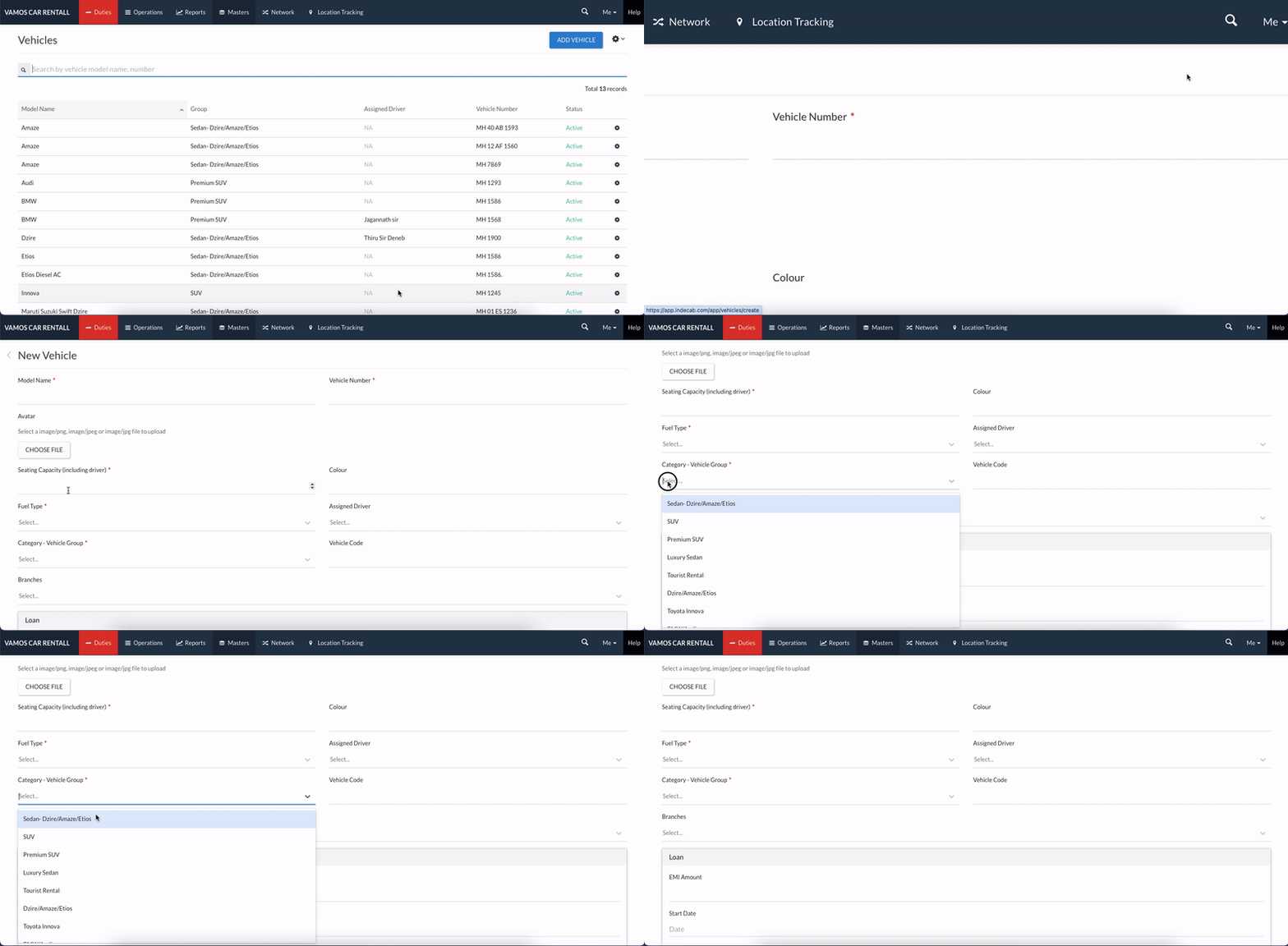
Click on Add Vehicle
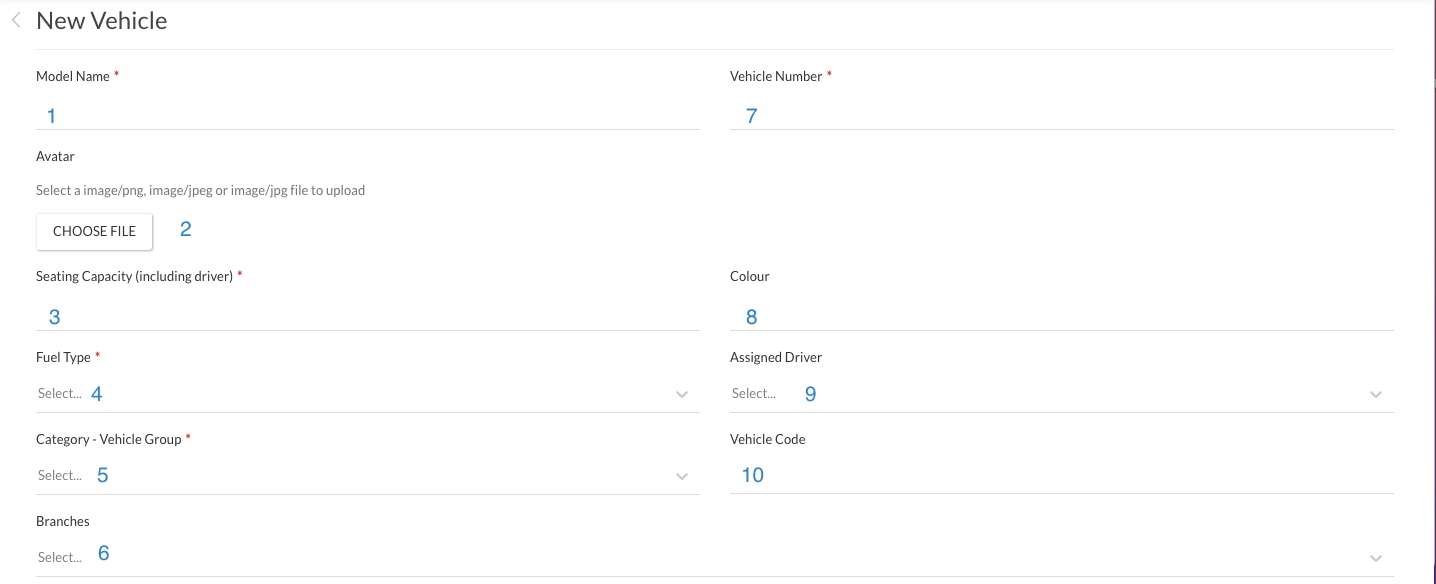
Enter the following details:
1- Model Name:
Enter the vehicle model for your reference
2- Avatar:
Click on Choose File and enter the vehicle photo.
Note: The vehicle photo uploaded under Avatar will be visible when allotment details are sent to your customer/passenger.
4- Seating capacity (including driver):
Enter the maximum seating capacity of the vehicle including the driver
5- Category- Vehicle Group:
Select the category this vehicle belongs to. You will be able to see this vehicle for allotment when a booking is made for the selected category
6- Branches:
If the vehicle belongs to a particular branch you can select it here. This will be useful during allotment and for your employees to manage vehicles.
7- Vehicle Number:
Enter vehicle license plate number here
8- Colour:
Enter the vehicle colour here
9- Assigned driver:
If there is a designated driver for this vehicle, you can choose the driver here. Once you allot a duty to the vehicle you will automatically see the duty allotted to the driver.
10- Vehicle code:
Enter a two letter code here, this will be useful for search and export
You can also store important information about documents related to the vehicle in Indecab. You will receive a notification on your dashboard 30 days before a document is about to expire.
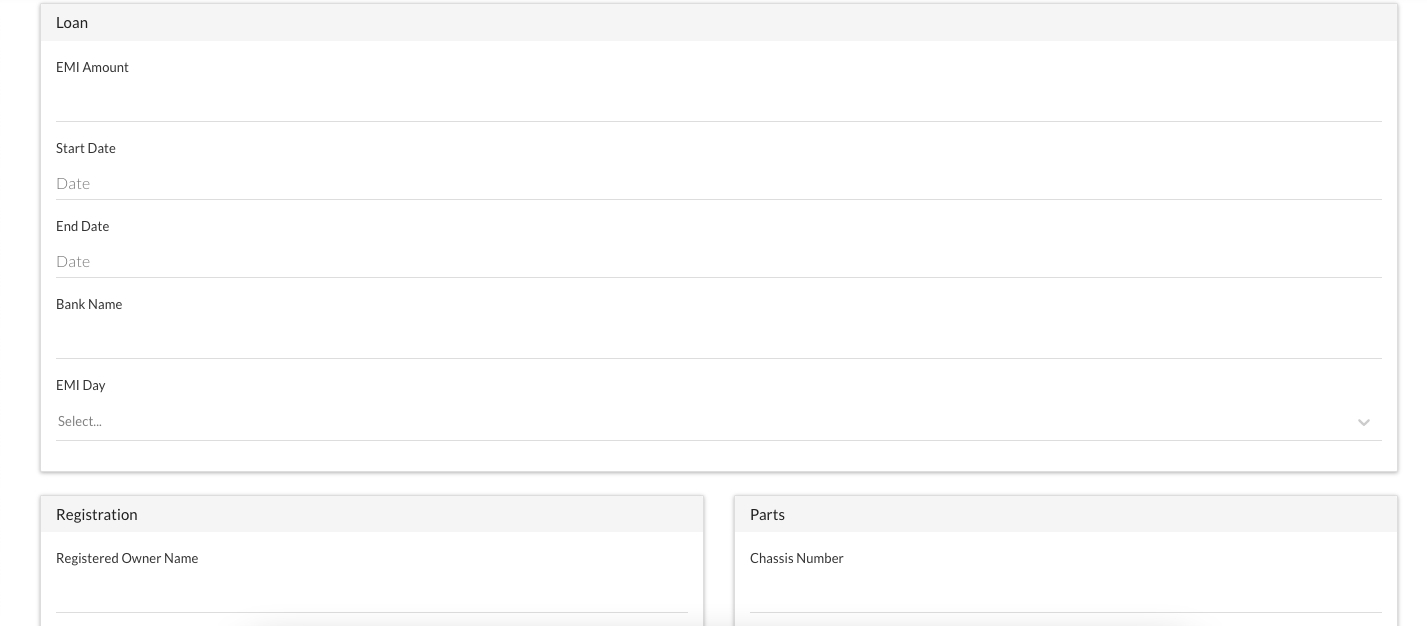
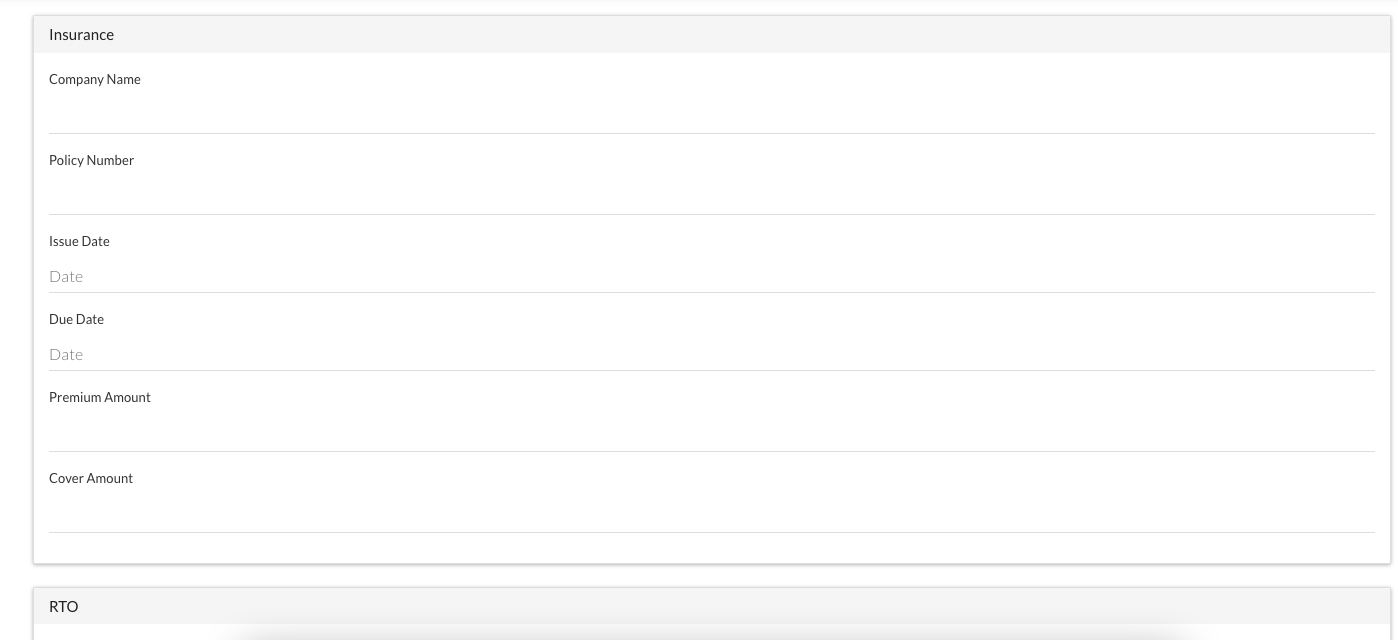
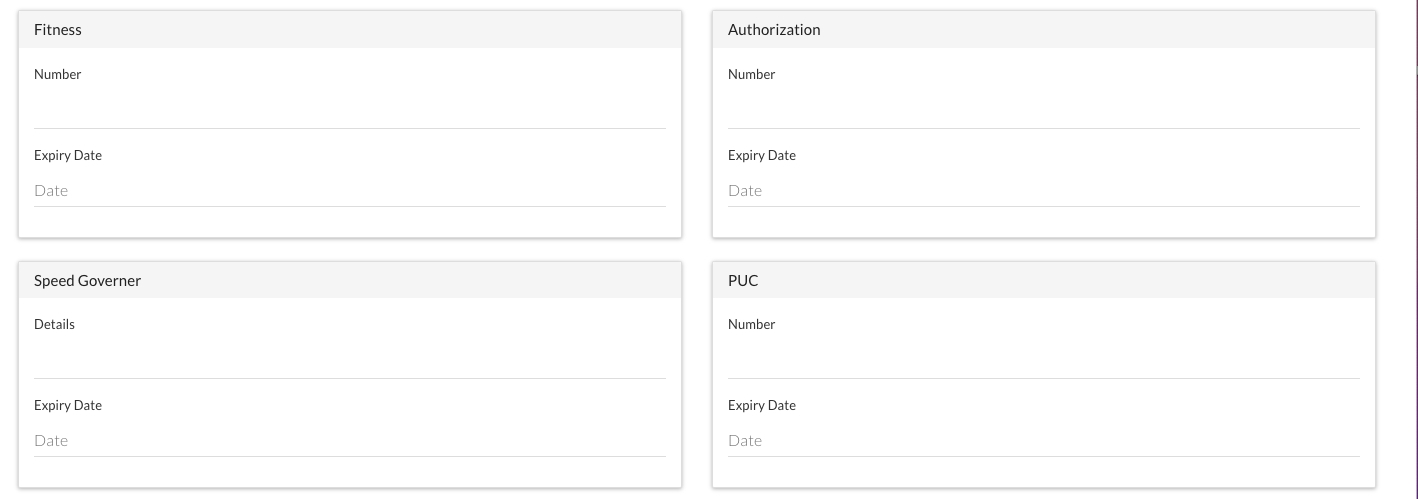
Note: You will receive an alert 30 days in advance in case any of these are about to expire:
- Loan
- Registration
- Parts
- Insurance
- RTO
- Fitness
- Authorization
- Speed Governor
- PUC
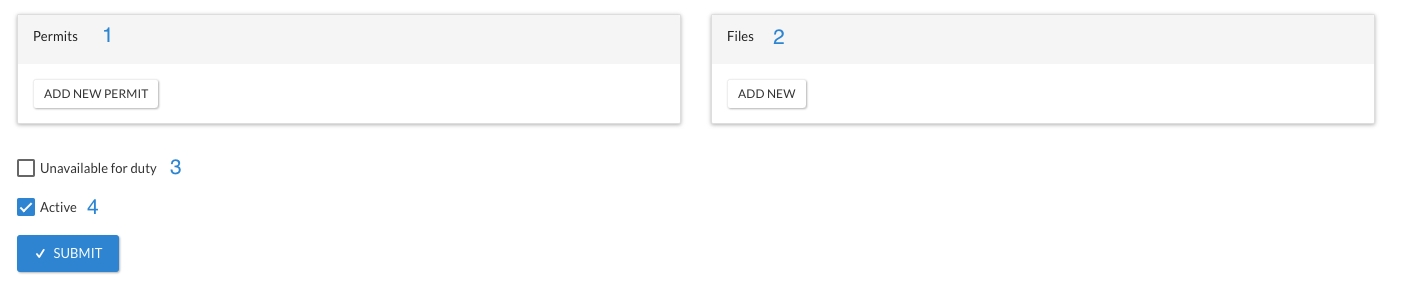
1- Permits
Enter the information of any and all permits issued for the vehicle.
2- Files
Add and store all relevant files and documents of your vehicle.
3- Unavailable for duty
Check this box if the vehicle is unavailable for duty.
4- Active/Inactive
Once a vehicle is no longer in use, it can be marked as inactive. Vehicles that are not active will not be visible during allotment.
Was this Helpful?
you found this article helpful
Related Articles

- Visit Our Website
- Our Policies