

Driver efficiency alerts & controls
Driver alerts help you monitor driver’s activity during an ongoing duty and quickly identify situations that may require attention. These alerts are generated automatically based on predefined settings, allowing your operations team to take timely action and ensure duties run smoothly.
These alerts also help improve passenger safety, reduce delays, maintain service quality, and keep duty tracking accurate.
Turning alerts on
Most alerts are switched on from one place:
Business Settings → Duties/Bookings → Duty Tracking Alert Settings
Tick the checkbox for each alert you want active. It takes under a minute to set up, and it runs quietly in the background from then on until you turn them off.
Where triggered alerts show up
When an alert triggers, it lands in one place:
Duties → Needs Attention tab
Open the relevant duty from the list, click the gear icon, then select Details to see exactly what was flagged and when.
| Alert | Triggers when | Where you see it |
|---|---|---|
| Vehicle Stoppage | Speed stays under 5 km/hr for 10+ minutes | 'Needs Attention' tab |
| Over-speeding | Speed exceeds 120 km/hr continuously for 60+ seconds | 'Needs Attention' tab |
| Geo-fencing | Driver isn't within 3 km of the pickup point 30 min before reporting time | 'Needs Attention' tab |
| Tracking Stopped | Live location stops reaching the system | In-app audio nudge to driver |
| Reporting Time Exceeded | Duty hasn't started 30 min after scheduled reporting time | In-app audio nudge to driver |
Types of alerts
Now that you have a quick overview, here's a closer look at how each alert works, when it triggers, and why it matters.
1. Vehicle stoppage alert
A Vehicle Stoppage Alert is raised when the vehicle remains stationary or moves very slowly for an unusually long period during an active duty.
Trigger condition
- Vehicle speed remains below 5 km/hr for more than 10 minutes
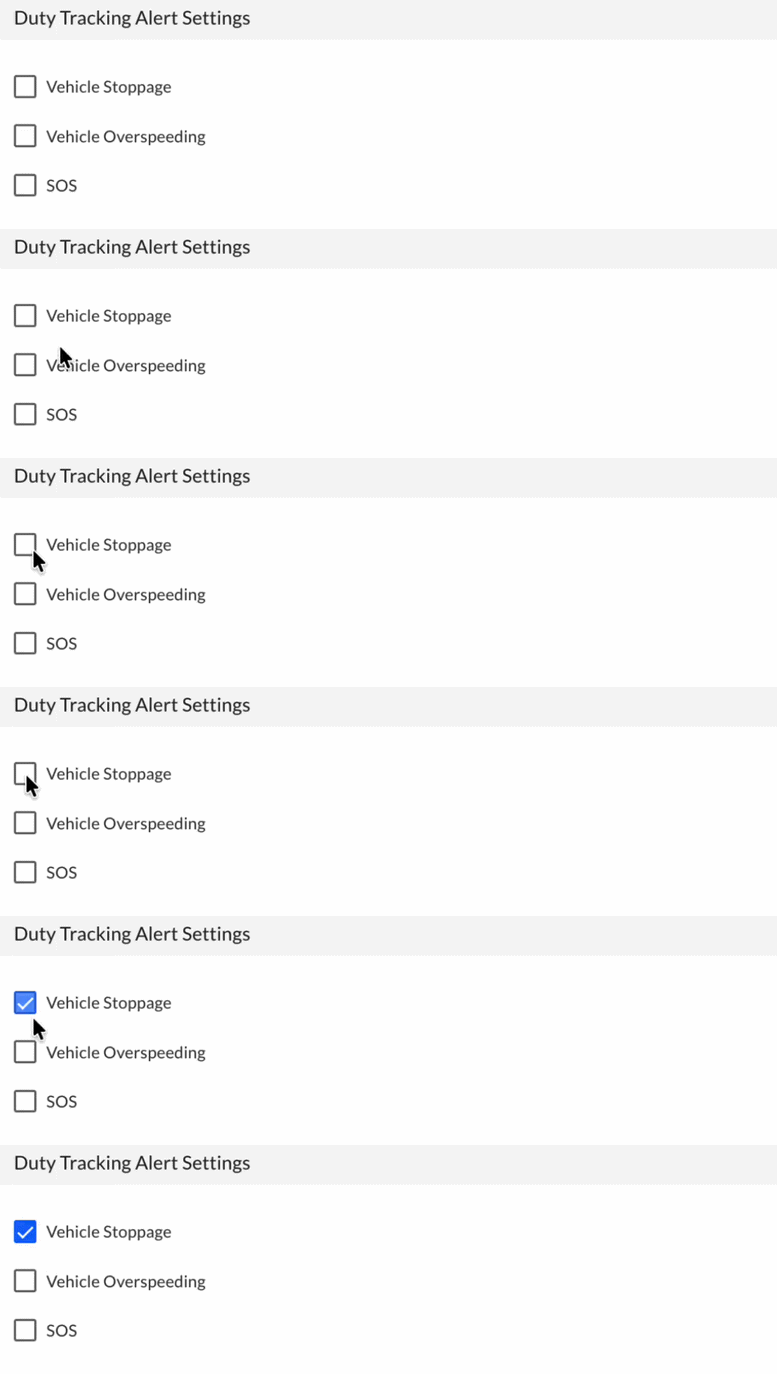
To activate this, go to Business Settings → Duties/Bookings → Duty Tracking Alert Settings →tick Vehicle Stoppage.
Why this alert is useful
Receiving this alert allows your operations team to verify the situation and provide assistance if required. A prolonged stop may indicate:
- Heavy traffic
- A driver break
- Vehicle breakdown
- An unexpected stop
Where to view triggered alerts
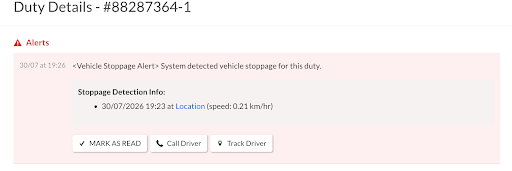
Vehicle stoppage alerts can be viewed under Duties → ‘Needs Attention’ tab from the dropdown → select duty → gear icon → Details.
2. Over-speeding alert
An over-speeding alert is raised when the vehicle is driven above the safe speed threshold for a sustained period.
Trigger condition
- Vehicle speed exceeds 120 km/hr continuously for more than 60 seconds.
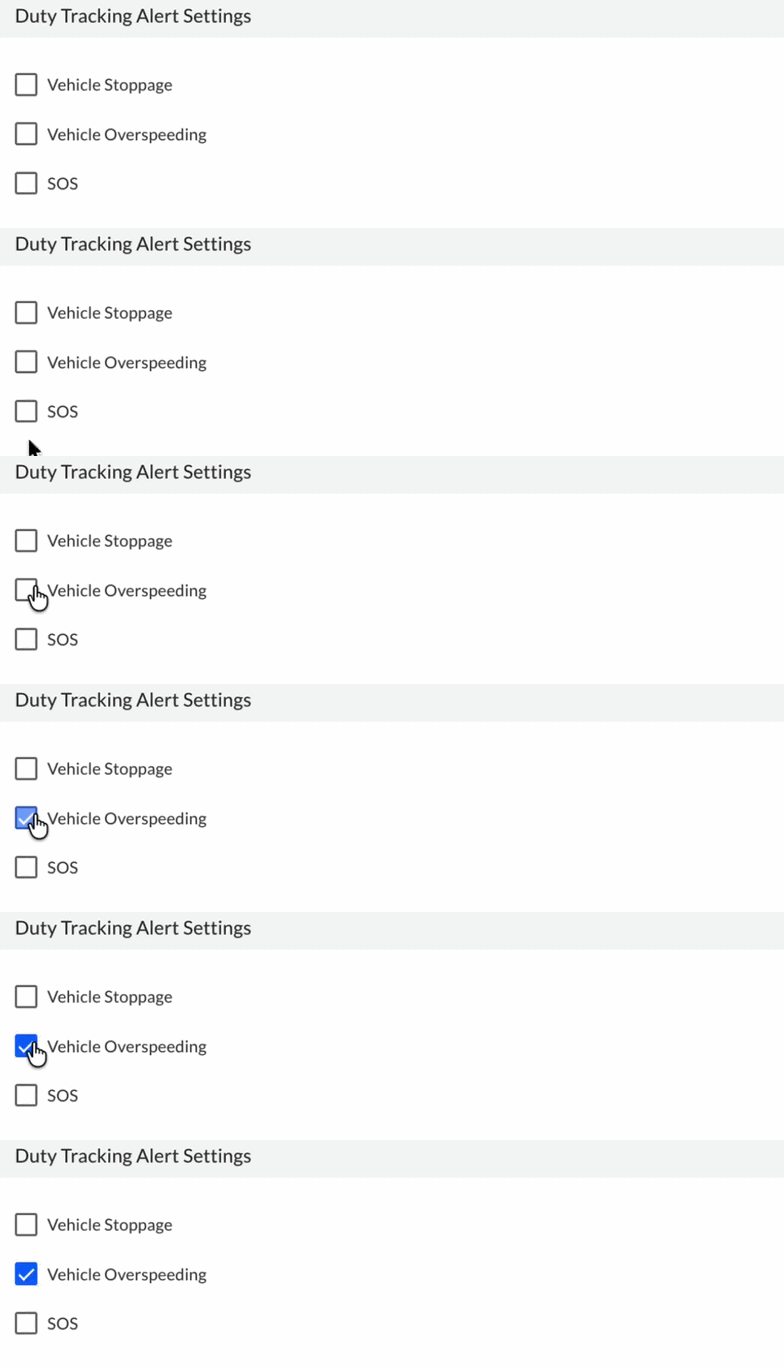
To activate this, go to Business Settings → Duties/Bookings → Duty Tracking Alert Settings → tick Vehicle Overspeeding.
Why this alert is useful
Continuous high-speed driving can increase the risk of accidents and affect driver compliance. This alert enables your team to contact the driver promptly and encourage safer driving.
Where to view triggered alerts
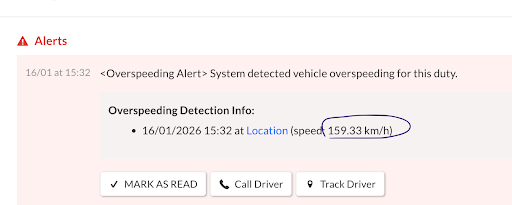
Vehicle stoppage alerts can be viewed under Duties → ‘Needs Attention’ tab from the dropdown → select duty → gear icon → Details.
3. Geo-fencing alert
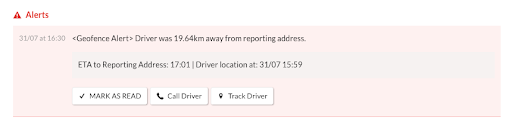
A Geo-fencing alert is raised when the driver is not close enough to the reporting location before the scheduled pickup time.
Trigger condition
- The driver is not within a 3 km radius of the reporting location within 30 minutes of the scheduled reporting time.
Why this alert is useful
This alert gives your operations team early visibility that the driver may not reach the pickup location on time. They can coordinate with the driver, assign another vehicle if required, or proactively inform the passenger.
Where to view triggered alerts
Vehicle stoppage alerts can be viewed under Duties → ‘Needs Attention’ tab from the dropdown → select duty → gear icon → Details.
4. Mark as arrived (driver control)
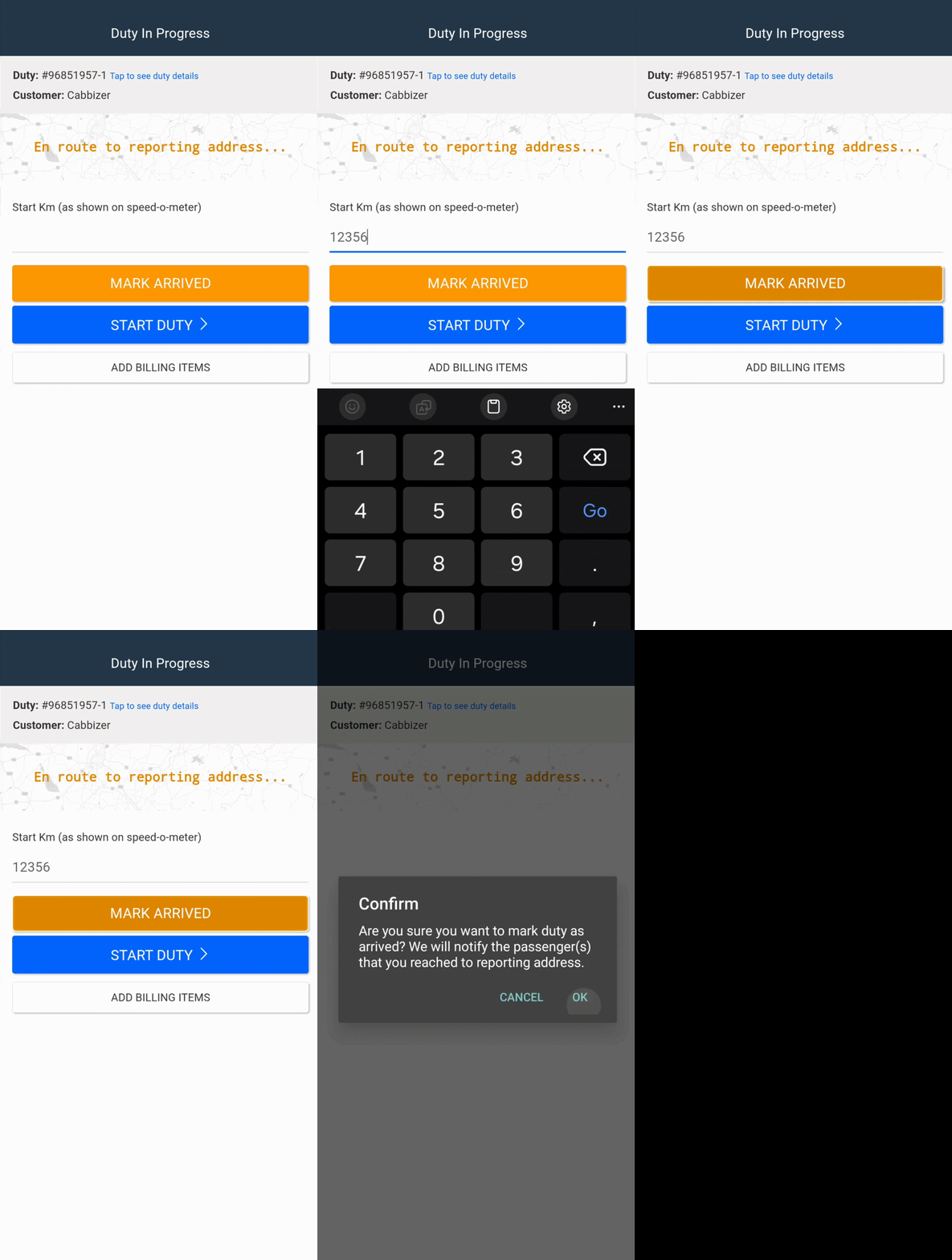
This feature lets the driver notify the passenger the moment they reach the pickup location before the duty has even started.
Once the driver starts the duty and reaches the reporting location, they can tap ‘Mark as Arrived’ in the Indecab Go Driver App. This instantly alerts the passenger that the ‘driver’ arrived at the reporting address.
5. Tracking stopped alert
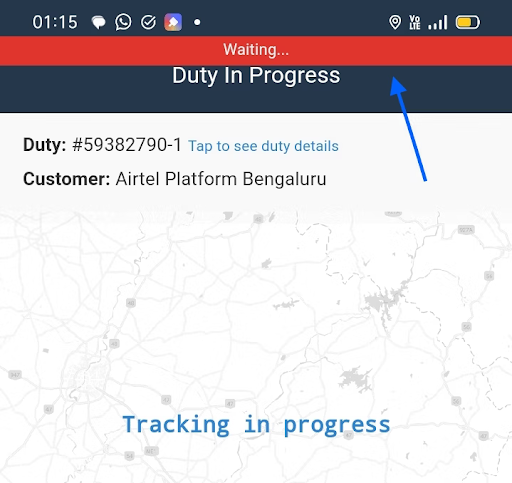
A tracking stopped alert is raised when the system is unable to receive the driver's live location.
This may happen when:
- GPS is turned off
- Mobile data or internet is disabled
- The driver is in a poor network area
- The device's date and time settings are incorrect
Why this alert is useful
Without live tracking, duty monitoring, ETA calculations, and safety tracking become unreliable.
To help resolve the issue quickly, the IndeCab Go Driver App automatically plays an audio alert in both English and Hindi, informing the driver that tracking has stopped and prompting them to fix it. No dashboard-watching required; the app nudges the driver directly.
6. Reporting time exceeded alert
A reporting time exceeded alert reminds the driver to start the duty if it has not started after the scheduled reporting time.
Trigger condition
- The duty has not been started within 30 minutes of the scheduled reporting time.
The driver hears in-app audio: "30 minutes have passed since reporting time. Kindly start the duty or mark the duty as No Show."
Why this alert is useful
This reminder encourages the driver to either:
- Start the duty if the passenger has boarded, or
- Mark the duty as No Show if the passenger did not arrive
Keeping the duty status updated helps your operations team monitor ongoing trips accurately and avoid unnecessary follow-ups.
Was this Helpful?

- Visit Our Website
- Our Policies